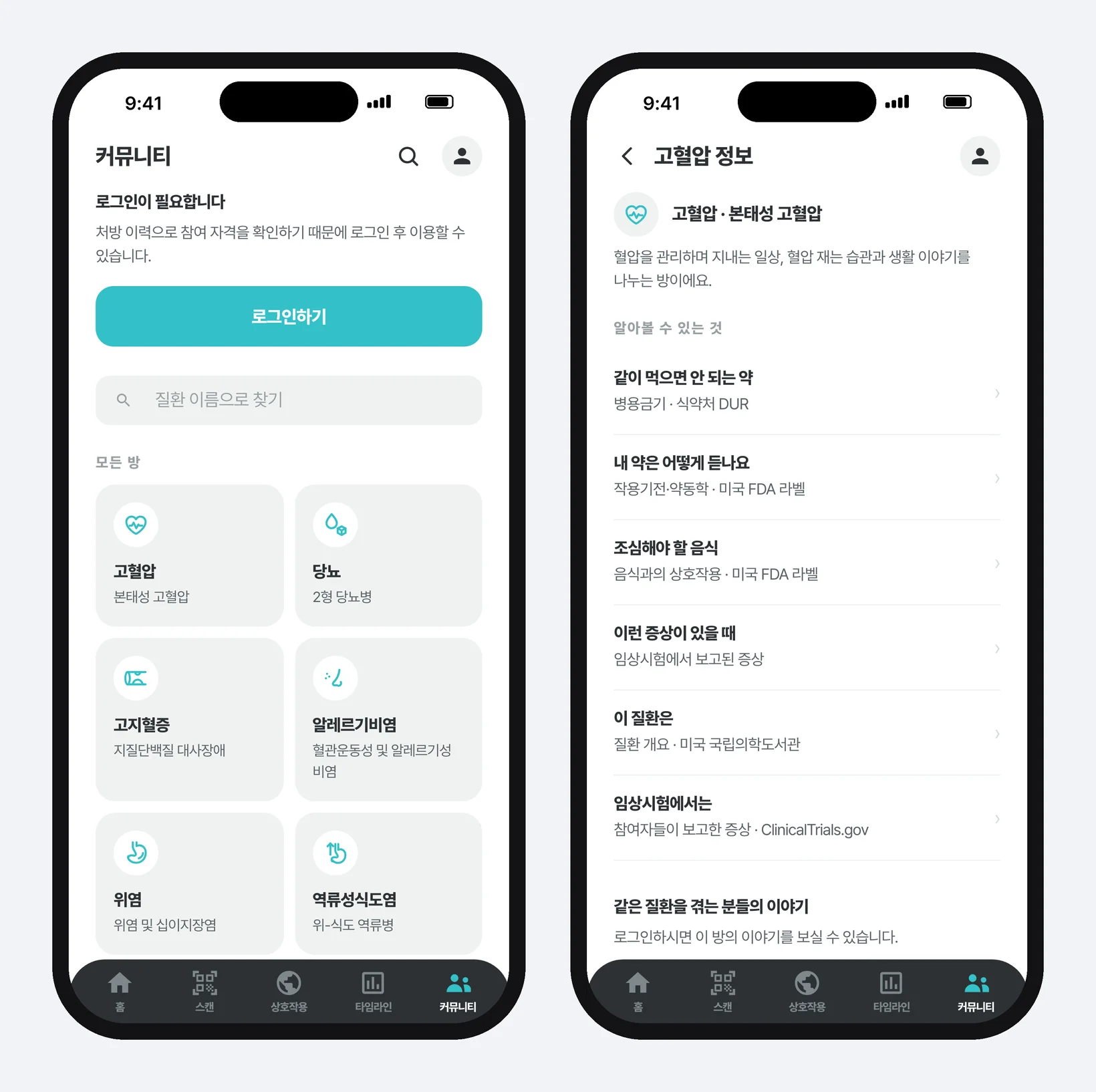
What PillCheck Community does
If the timeline in the previous part is where you see your own medication records together, Community is where people with records for the same condition meet. It is the rightmost of the five tabs at the bottom of the PillCheck app. The app shows the same screens as www.pillcheck.co.kr, so it works the same in a phone browser.
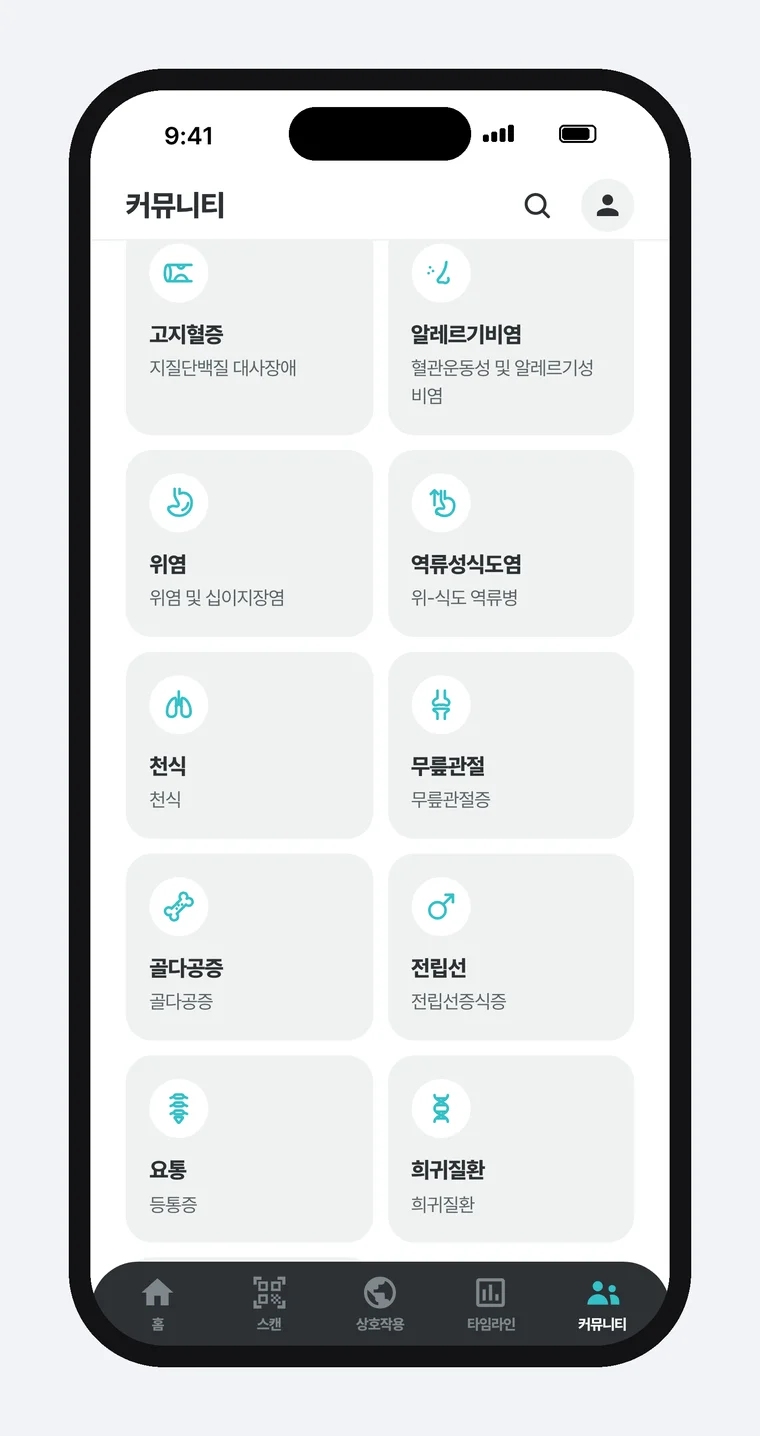
Each condition has its own room. There are eleven rooms — hypertension, diabetes, high cholesterol, allergic rhinitis, gastritis, reflux esophagitis, asthma, knee joint, osteoporosis, prostate and lower back pain — plus a rare-disease room and a cancer room that group conditions with few patients. Typing “hypertension” in the search box above the list, or “essential hypertension” as printed on the envelope, brings up the same room.
Every room has health information, and rooms whose conversation is open also have a list of posts. Anyone can read the health information; the posts can be read and written only by members with a prescription for that condition. Posts come in two kinds: Question and Sharing experience.
How to use it in the app
First, tap Community in the bottom tab bar and sign in. You can start with a Kakao, Google or Apple account. Without signing in you see only the room list and the health information.
Second, create your eligibility from your own prescription record. Eligibility is the marker that decides which rooms' posts you can read and write. Point the camera at the QR code on a medication envelope or prescription in the Scan tab, or import your medication history from the Health Insurance Review and Assessment Service, and your eligibility is checked. When a scan makes you eligible for a room whose conversation is open, a notice such as “You can enter the hypertension room” appears with a Go button.
Third, enter the room and tap the Question / Write button at the bottom right. The first time, you choose the name you will use in this room (a nickname) and give a separate consent to the collection and use of sensitive information. A nickname is set once per room and is not asked for again on each post. Then pick Question or Sharing experience, write a title and body, and tap Post.
Fourth, respond to other people's posts. Question posts have an Answer button, experience posts have a Reply button, and the heart-shaped Like button lets you show support. The All · Question · Sharing experience tabs above the feed (the list where posts pile up) filter by kind.
Your prescription record decides which rooms you can enter
PillCheck does not let users pick “I have hypertension” themselves. The server decides eligibility. The server is the computer on PillCheck's side that stores data and makes decisions. When you scan a QR code, the server reads that prescription's original record again by itself and decides; a claim sent from the phone is not used as evidence.
There are two kinds of evidence. If the prescription carries a disease classification code, that code picks the room. A disease classification code is the disease number attached to a medical record; “I10” is essential hypertension. Many prescriptions have no code, so when a prescribed ingredient clearly points to one condition, the drug is used instead. A blood pressure ingredient such as losartan is an example. Ingredients used for many conditions are not used for this decision, because putting someone in the wrong room was judged riskier than keeping them out. If one prescription points to several conditions, you become eligible for all of those rooms.
Eligibility has a time limit: 12 months from the prescription date, and the screen warns you from 30 days before it ends. The point is to leave time to get the next prescription and scan again. Scans of a child's record are not used as evidence for the guardian's eligibility, because a child's prescription says nothing about the guardian's condition.
A room also has an opening condition. Its conversation opens when 10 eligible people for that condition have gathered. Before that, the room card shows “N/10” with a ten-segment bar, and inside the room your seat is marked with a bold outline. Showing honestly how many have gathered and waiting was judged better than opening many empty rooms used by one or two people.
What happens before a post goes up
Community posts carry health stories, so there are three layers of checks before posting.
One: a separate consent for sensitive information. Sensitive information is personal information, such as health data, that the law requires to be handled more strictly. Leaving a post, reply or like in a room shows other members that you are in that condition's room, so PillCheck asks again at the moment of writing instead of bundling it with other terms. Without consenting you can still use the rest of the app.
Two: rules that block saving. Contact details such as phone numbers and email addresses, hospital or pharmacy names written as one word like “Gangnam Clinic”, and titles like “Dr.” or “pharmacist” attached to a name are blocked anywhere in the text. A sentence that contains a drug name from your own medication record together with an efficacy claim (“it works well”), a recommendation (“try taking it”) or a purchase lure (“where to buy it cheap”) is also blocked. When blocked, the screen says “This cannot be posted” and shows which rule was hit, so the writer can fix it.
Three: a rule that asks instead of blocking. If the text contains words like “stopped”, “quit”, “half”, “dose” or “folk remedy”, right before posting the screen asks: “Does this recommend changing a prescription or stopping medication? This community is for sharing experiences, not for changing prescriptions.” Choosing “Let me review” sends you back to edit; choosing “This shares an experience” or “This asks a question” posts it as is. A posted text then gets a consultation notice, “Don't change your prescription on your own”, above the body and in the first reply slot.
At the bottom of the screen there is always a line reading “This is not medical advice · Consult a doctor or pharmacist”. It stays even when there are no posts and even when you are signed out. Apart from the screen's checks, rules on the server side check eligibility and consent once more, because checks on the screen alone cannot stop requests that bypass the app.
Health information opens without eligibility
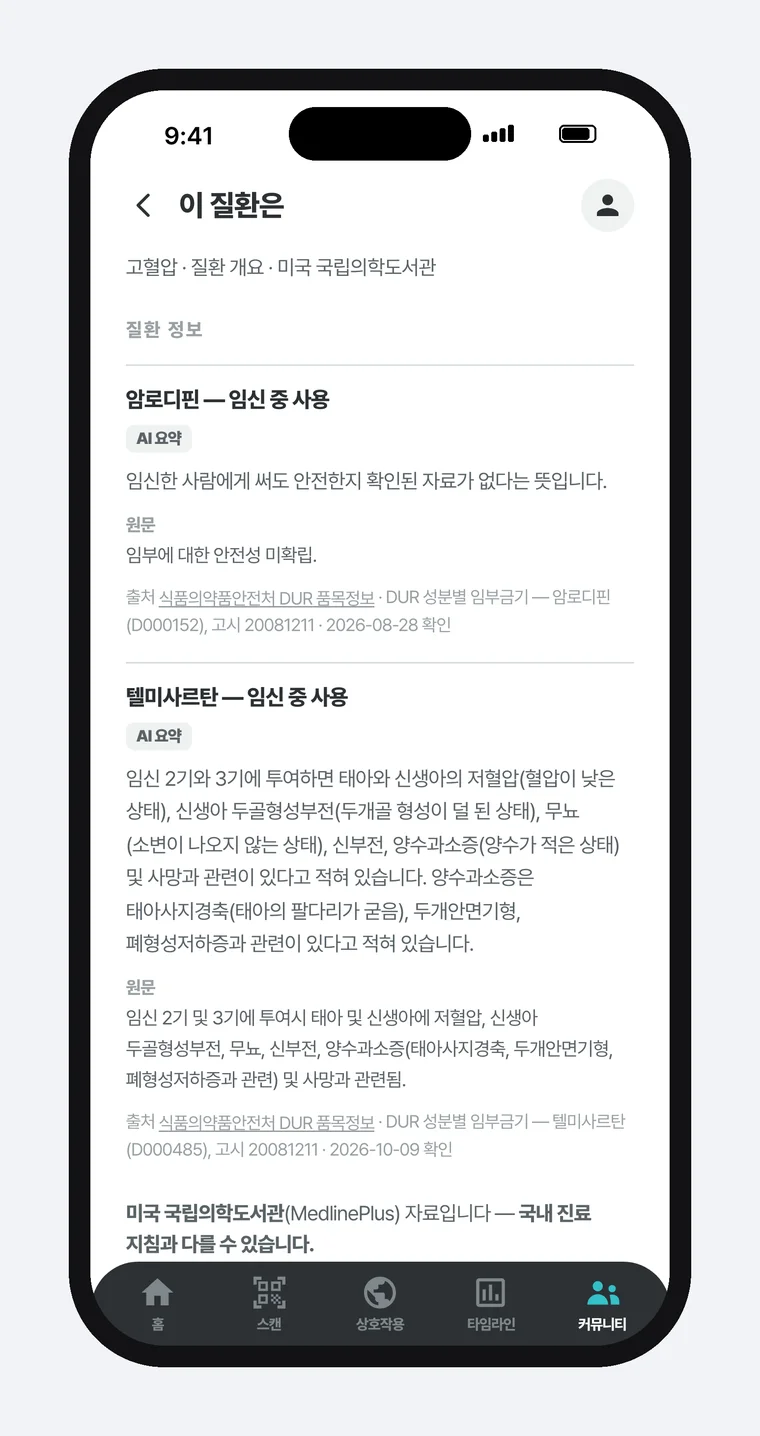
When you enter a room, six topics under “What you can look up” appear before any posts: drugs you should not take together, how my medicine works, foods to be careful with, when I have these symptoms, about this condition, and what clinical trials found. They are based on Korea's Ministry of Food and Drug Safety contraindication data, U.S. Food and Drug Administration (FDA) drug labels, the U.S. National Library of Medicine, and the clinical trial registry ClinicalTrials.gov. A contraindicated combination is a pair of drugs officially designated as not to be used together.
This information opens without signing in or eligibility. Only members' posts are hidden. If a room looked entirely empty to someone who is not yet eligible, it would also cut off their way to learn about the condition.
The information screens keep the original text alongside. On the About this condition screen, each item has an easy-language “AI summary” followed by the “Original” text and the source and check date. U.S. materials carry a note that they “may differ from Korean clinical guidelines”. Sentences written by AI and sentences from official documents are shown side by side, not mixed.
How to put a first post in an empty room
The biggest problem for a new community is the first post. People who face an empty feed and do not know what to write simply leave.
So the hypertension, diabetes and high cholesterol rooms got a one-line introduction. The hypertension room's reads: “A room for sharing everyday life while managing blood pressure, blood pressure measuring habits and lifestyle stories.” In these three rooms, when there are no member posts, the feed shows “Let's talk about things like this” with three sample questions, such as “When and how do you take your morning blood pressure?” and “What have you changed in your meals to eat less salt?” The samples mention no drug names or effects and ask only about experience and daily life, because if the screen speaks medical information first, the room reads as a place that gives information. These sample sentences are tied to automated tests so that they pass the same blocking and risk-word checks as member posts. Automated tests are checks that run by themselves whenever the code changes.
There is also an official operations account, 「필첵 운영팀」 (PillCheck Team). At the top of the hypertension, diabetes and high cholesterol rooms sits a welcome post by this account, marked Pinned, with an Official badge next to the author. The welcome post includes house rules such as “Please do not write real names, contact details, or the names of the hospitals and pharmacies you visit.” The Official badge is attached only to accounts on a list the server maintains, never judged by nickname. If anyone could take the nickname “PillCheck Team”, the badge would lose its meaning. For the same reason, nicknames beginning with “운영” (operations) or “관리자” (administrator) are not accepted.
The feed is ordered pinned posts first, then unanswered questions, then the rest newest first. The order keeps questions waiting for answers from being buried under new posts.
What to take away when writing community rules
One thing from PillCheck Community transfers to other work: separate rules that block from rules that ask.
Write blocking rules narrowly. The first hospital-name rule even blocked “I went to the hospital today”, because in Korean the word for “today” followed by “hospital” looked like a hospital name. After confirming that real hospital names are written as one word, like “Seongmo Hospital”, the rule was changed to block only those, and real names were still caught while everyday sentences went through. When normal posts are blocked often, people first learn how to get around the rules.
Write asking rules broadly, because a false hit costs only one tap. “Stopped” is asked about even without a drug name, wherever it appears in the text.
Whether it is a group chat notice or a review instruction you give to an AI, try writing these two lists separately when you set rules: only sure things under “always block”, and generously under “confirm once”. Then what must be protected stays protected, and conversations are interrupted less.
This closes the PillCheck app series. Starting with scanning, it went through drug search, medication reminders, interactions and the timeline to the community, one feature at a time. Search for “PillCheck” (필첵) on the App Store or Google Play to install it.