What PillCheck Timeline shows
The interaction check in the previous piece compares the medicines you have recorded. Timeline is where those records pile up. The app has five tabs at the bottom, Home, Scan, Interactions, Timeline and Community, and Timeline is the fourth. Tapping All (전체) next to Dispensing records (조제 기록) on Home goes to the same screen.
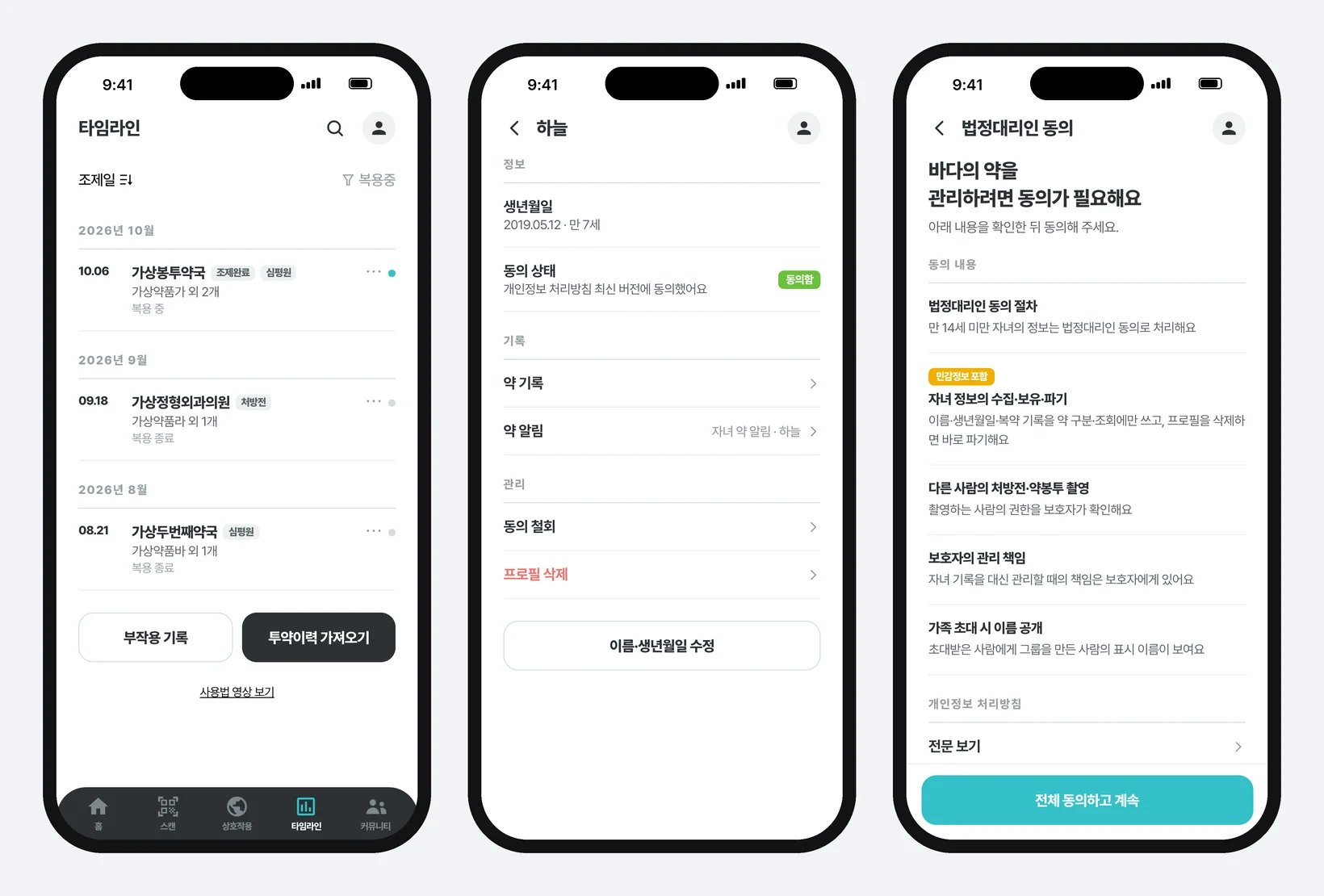
Timeline is grouped by month, such as “October 2026”, based on the dispensing date. One row is one dispensing at a pharmacy. The dispensing date is on the left and the pharmacy name in the middle; records without a pharmacy name use the clinic name. Below that come the first medicine's name and how many others there are, such as “Synthetic drug A and 2 more”, and at the bottom a status such as Taking (복용 중) or Finished (복용 종료). The dot at the far right is coloured only while you are taking it.
The small label next to the pharmacy name is the source badge. Prescription (처방전) is a record registered from a prescription QR code or photo. It is the stage before you collect the medicine, so within its period it shows Not yet dispensed (조제 전). Dispensed (조제완료) is a record registered from the envelope QR code after collecting the medicine, and HIRA (심평원) is a record brought in with Import medication history. HIRA is short for the Health Insurance Review and Assessment Service, the public agency that holds the claims hospitals and pharmacies file with national health insurance.
How to use it in the app
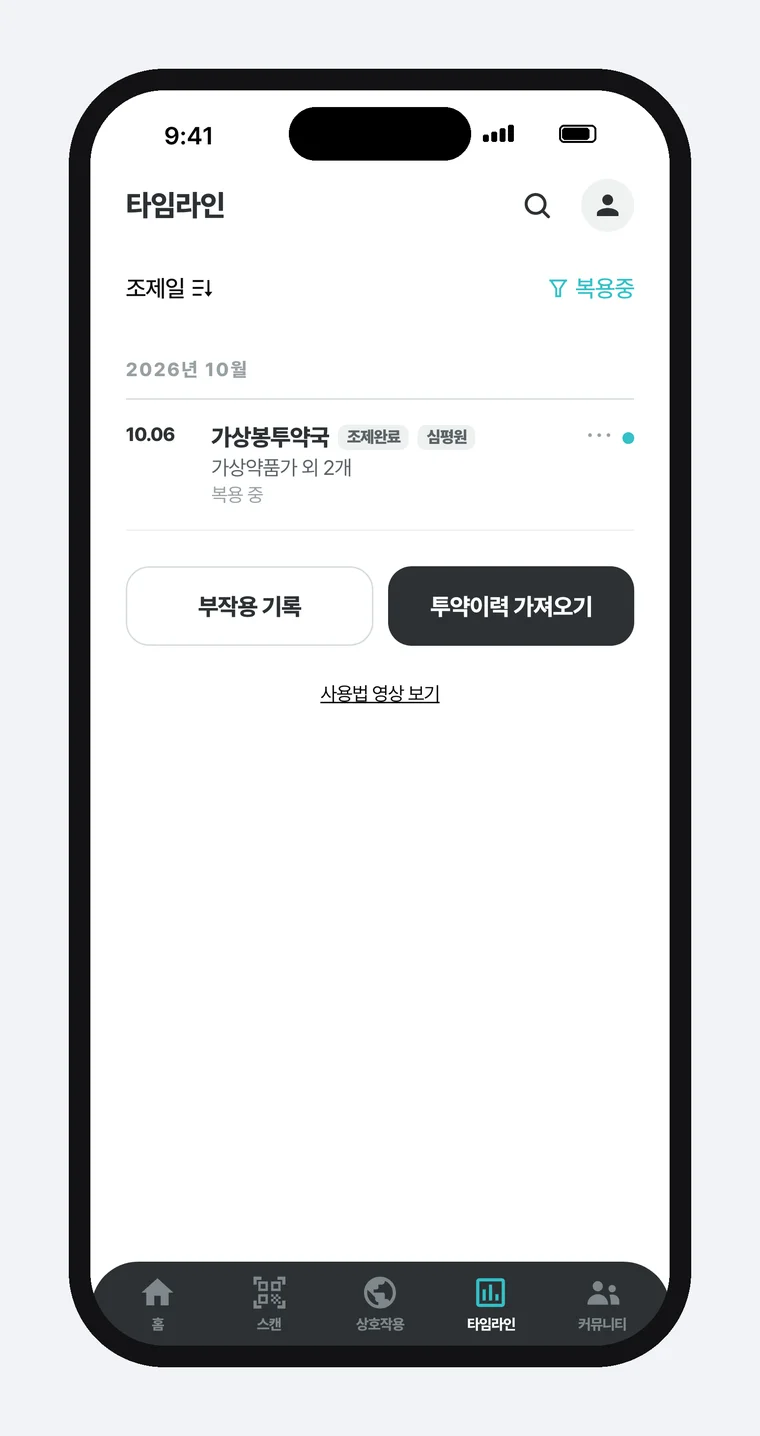
There are three ways to build up records. First, point the Scan tab at the QR code on a medication envelope (the first piece in this series). Second, photograph a prescription that has no QR code. Third, use Import medication history (투약이력 가져오기) under Timeline to bring in past dispensings all at once.
Import medication history is available only to signed-in users and has four steps. First, enter your details (name, date of birth, mobile number). Second, give identity-verification consent. Third, choose an authentication method: Naver, KakaoTalk, PASS or Toss. Simple authentication means confirming who you are through apps like these instead of a digital certificate. Fourth, on the Dispensing history consent screen, tap “Agree to all of the above and continue” and approve the request in the app you chose. The last year of prescription and dispensing history from HIRA then comes into Timeline.
The screen states that the details you enter are saved only in that device's browser, to fill them in next time, and are not kept on the server. It does not ask for a resident registration number. The flow is also shown in the How-to video (사용법 영상 보기) link under the button (in Korean). https://youtu.be/Ivst6lMSDSI
There are two handles for reading the list. Tapping Dispensing date (조제일) at the top left switches to registration-date order, and tapping Taking (복용중) at the top right leaves only what you are taking now. Tapping a row opens the dispensing detail with the medicine list and medication guidance. Delete a record from the “⋯” menu on the right of the row, or by swiping the row left to reveal Delete.
Where records are stored
Records are saved on the phone first. Even without signing in, scanning an envelope QR code adds a row to Timeline, but that record lives only on that device.
Once you sign in, the records on the phone are matched with the server. The server is the computer on PillCheck's side that keeps each account's records, and keeping both sides the same is called syncing. So if you sign in to the app with the account you used on the web (www.pillcheck.co.kr), the same Timeline carries on.
Before anything is uploaded, though, one thing is checked. Medicine records are health information, which falls under sensitive personal information that must be handled more strictly than ordinary personal data. PillCheck uploads records to the server only for accounts whose consent to the collection of sensitive information is confirmed; without that consent, or while it is still being checked, records stay on the phone and are not uploaded.
Keeping one dispensing from showing up as two rows — grouped by prescription number only
Building Import medication history created a new problem. When someone who has been scanning envelope QR codes all along brings in a year of HIRA records, the same dispensing appears twice, in bulk. The envelope is the information sheet handed over after dispensing, and the HIRA record is the claim filed with health insurance for that same dispensing. They are two copies of one event, written down in two different places.
There is only one rule for showing the two as one row: the prescription number, the issue number each prescription carries. Only when the envelope record and the HIRA record hold the same number do they appear as one row with two badges, Dispensed and HIRA. The October row in the screen above looks like that.
Records are not combined because the dates and drug names look alike. Being dispensed the same medicine twice on the same day really happens. Combining by resemblance would fold those two into one, and one of the dispensings the user actually received would disappear from the list. If the number is missing or different, both rows stay. A wrongly merged row goes unnoticed, while a leftover duplicate is something the user can see and delete.
Only the row on screen is combined. Both stored originals remain. The envelope record represents the combined row. It carries pill photos and effect descriptions, while the HIRA record has little more than the drug name and code, so putting the thinner record in front would make the detail screen poorer after combining. Prescription records are never combined, because they come from the stage before the medicine is collected, a different point in time from a dispensing record.
Deleting starts with the server
When you delete a record, the server copy is deleted first, and only after that the copy on the phone. In the reverse order, the copy left on the server comes back down at the next sync, and to the user it looks as if a deleted record came back to life. If the server deletion fails, the phone's copy is left untouched and the app says it could not delete. Saying it was not deleted is better than seeming to delete and then having it reappear.
If no other record still contains the medicine from the deleted record, the medication reminder set for that medicine is deleted along with it, without asking. At one point the app asked whether to keep the reminder, but a kept reminder had no screen from which it could be cleaned up. Reminders can only be tidied from dispensing records, and that record was already gone.
When you import medication history again, records you deleted earlier are not brought back by default. If deleted records returned with every import, it would look as though deletion does not work. For people who deleted something by mistake, the app asks separately whether to restore them.
Family records — a child's medicines under the parent's account, and family groups do not share records
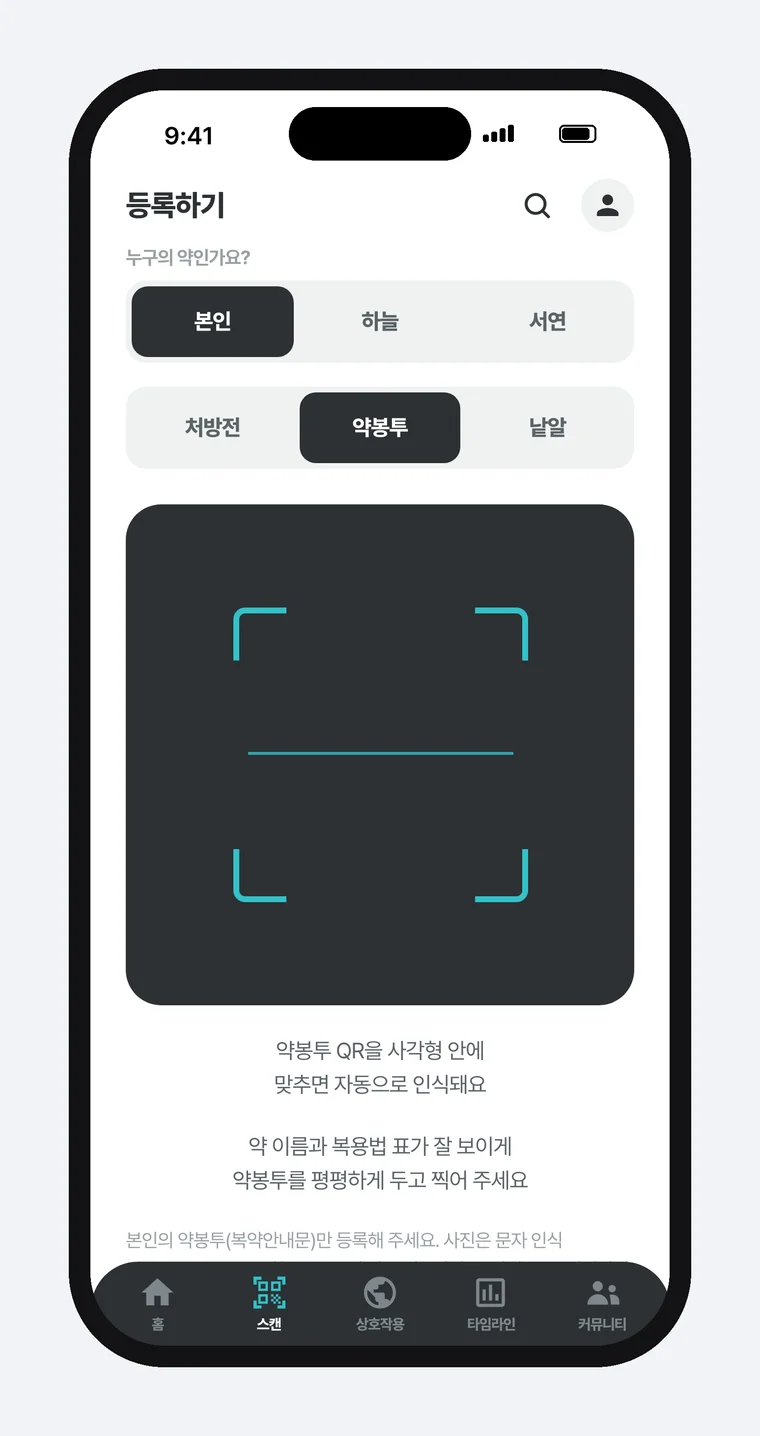
The family features are under Family management (가족 관리) in your profile, and they split into two features of a different nature: child management and family groups.
Child management adds a child inside the parent's account so the child's medicines are recorded separately. Only children under 14 can be added. After you enter the name and date of birth, a legal guardian consent screen appears. A legal guardian is a person, such as a parent, who gives legal consent on behalf of a minor. The screen sets out, in turn, the consent procedure, the collection, retention and destruction of the child's information, photographing another person's prescription or envelope, the guardian's responsibility, and the display of names in family invitations, and nothing is saved until you tap “Agree to all and continue”.
From then on, you choose yourself or the child under “Whose medicine is this?” at the top of the Scan screen before registering. Your name and the child's name also appear side by side at the top of Timeline, and tapping one shows only that person's records. “Delete this member's records” at the bottom of the child's view deletes only that child's medicine records.
Withdrawing consent immediately deletes that child's medicine records, supplements and reminders, and stops viewing, saving and reminders. The profile remains so you can consent again. Deleting the profile destroys the records at once, and they are not moved into your own records. When the child turns 14, no new medicines can be registered for them and no reminders are sent, while the existing records can still be viewed and deleted.
Family groups are different. Create a group and share the invitation link, and the person who receives it can join. An invitation code can be used for seven days. Once someone joins, group members can see each other in the member list, but medicine records are not shared. The join screen says exactly that.
There is one reason for the split: not to open another person's health records just because they are family. Viewing someone else's medicine records on their behalf is limited to children under 14 whose guardian has consented, and a spouse's or parent's records are managed by that person in their own account. Even if the address contains a value pointing to a child, the records are not opened until the account's member list confirms that the child can be viewed. While that is being checked, the screen shows only “Checking the member”.
What to take away for any work that gathers records
Three of the methods used in PillCheck Timeline carry over to other work.
First, when combining records that come in from two places, make a single number the rule. Combining because names or dates look alike makes something that really happened twice disappear into one. If you need to merge two sheets of customer lists or orders today, first check whether you can answer “how do we know these two rows are the same thing?” with a single number. If you cannot, do not merge them; keep both.
Second, combine only on the screen that displays them, and leave the originals as they are. If you later find the rule was wrong, you can undo it as long as the originals remain.
Third, delete from where the original lives first. Deleting only the copy means it comes back from the original the next time the two are matched.
To try PillCheck, search for “필첵” on the App Store or Google Play. The web version is www.pillcheck.co.kr.