What PillCheck interaction check does
The previous part covered the schedule and reminders that decide when to take each medicine. This part covers whether those medicines can be taken together.
A drug interaction is when taking two medicines together makes one raise or lower the effect of the other, or increases side effects. If you get prescriptions from two clinics separately, or buy another medicine at a pharmacy while on a prescription, there are times when nobody looks at both sides in one place. PillCheck interaction check lets you run that comparison with the one drug in your hand.
The baseline is “medicines you are taking”. It includes the drugs in dispensing records you registered by envelope QR code or prescription photo whose prescription period has not yet ended. One new drug is compared against that whole list.
How to use it in the app
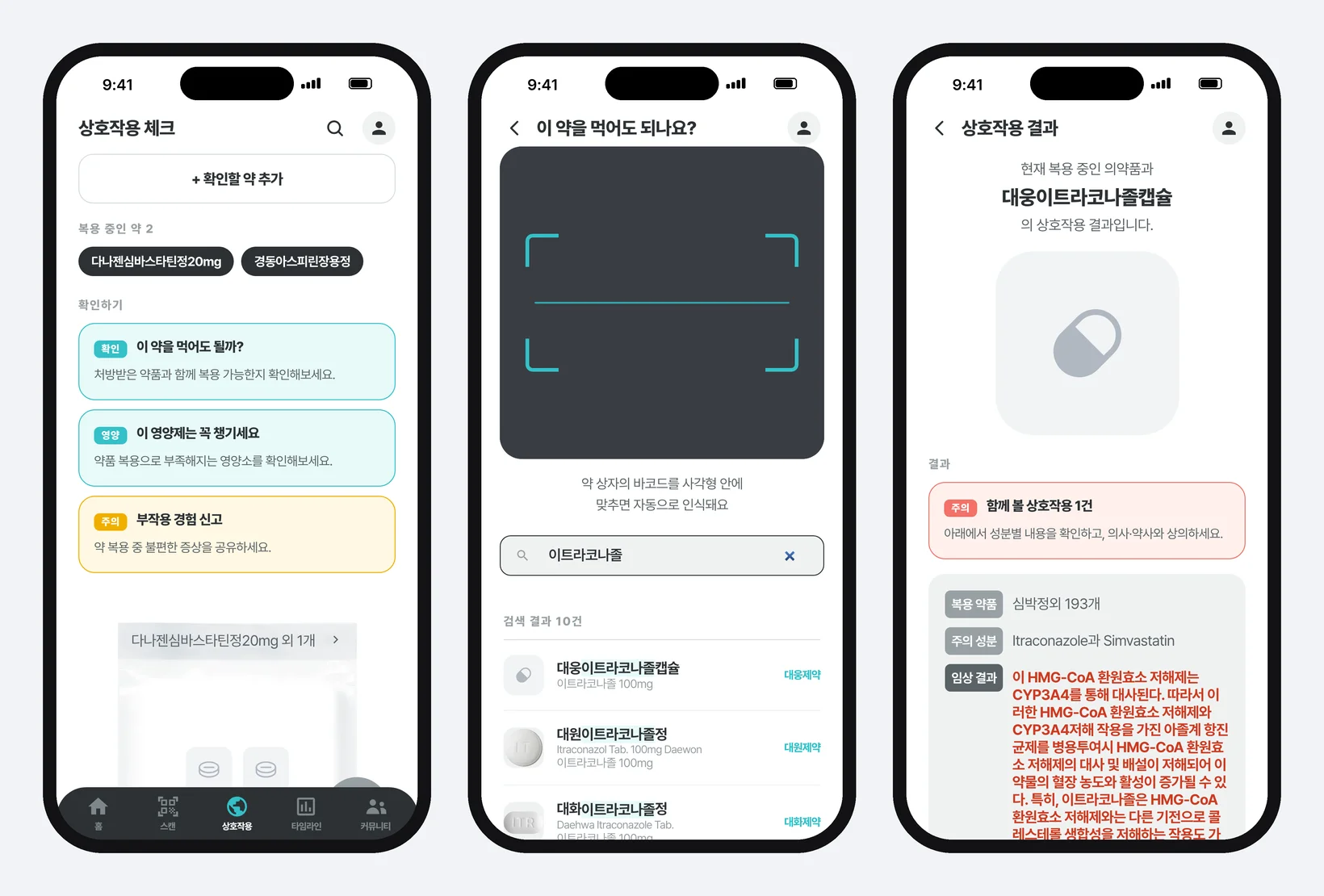
First, tap Interactions (상호작용) in the bottom menu. At the top of the Interaction check (상호작용 체크) screen you see a count such as “Medicines you take 2” (복용 중인 약 2), with each drug name shown as a rounded tag. The Drug interactions (약물 상호작용) button on a drug detail screen also brings you here.
Second, tap “+ Add a drug to check” (확인할 약 추가) or “Can I take this drug?” (이 약을 먹어도 될까?) to open the “Can I take this?” (이 약을 먹어도 되나요?) screen. In the app, the camera turns on as soon as you enter. Line the barcode on the drug box up inside the square and it is read automatically and takes you to the result.
Third, if you do not have the box, type the drug name in the “Search for a medicine” (의약품명을 검색하세요) field on the same screen and pick it from the results. A drug you picked stays in your recent searches so you can tap it again later.
Fourth, read the Interaction result (상호작용 결과) screen. At the top is the sentence “Interaction result between the medicines you are taking and ○○” with a photo of the drug, and the Result (결과) section gives the verdict. If any combination is flagged, the count comes first, such as “Caution · 1 interaction to review” (주의 · 함께 볼 상호작용 1건), and the details for each ingredient follow below, one card at a time.
The Interaction check screen has two more cards. “Don't miss these supplements” (이 영양제는 꼭 챙기세요) leads to a screen showing nutrients your current medicines tend to deplete, and “Report a side effect” (부작용 경험 신고) leads to a place to note uncomfortable symptoms you had while taking a medicine.
The image at the top shows a check of itraconazole capsules, an antifungal, against a list containing a simvastatin cholesterol drug and enteric-coated aspirin. The two medicines being taken are test records placed in the browser; the result is a real lookup.
What happens behind the screen
When the result screen opens, PillCheck sends the server two things: the code of the drug to check, and the codes of the drugs on your list whose names were confirmed. It sends an encrypted code attached to each drug, not the drug name as text. If you came in through a barcode, the barcode number is the code of the drug to check.
The server breaks each drug down into ingredients. An ingredient is the substance in a medicine that actually has the effect. Different brands with the same ingredient should raise the same warning, so the comparison is done between ingredients, not drug names. A medicine that combines several ingredients is checked ingredient by ingredient.
Even matching ingredient names takes work. Many ingredients come attached to a partner substance such as sodium so they dissolve well in the body, a form called a salt. If one data source writes “warfarin sodium” and another writes “warfarin”, they look like different ingredients as text. So PillCheck matches on the base name with the salt part removed. The interaction data, on the other hand, holds the same content separately for each salt form, so one combination can match several times. Identical content that the screen cannot tell apart is shown only once.
Along with the result, the server returns how many drugs it could not match to ingredients: drugs whose code was read but whose product could not be found in the drug information, or whose product exists but has no ingredient data. Drugs like these drop out silently all too easily, so they are counted separately. That number feeds the “Safe” verdict described below.
Only the four barcode formats common on drug boxes are accepted. The last digit of a barcode is a check digit calculated from the digits before it, and if it does not match, the barcode is treated as not read. Barcodes on bundles of several boxes are rejected too. They could be converted into a single box's code by calculation, but there is no guarantee the result equals the real single-box code, so not reading it was chosen over reading it as a different drug. In the app, a barcode it could not read briefly shows “Couldn't read the barcode” (바코드를 읽지 못했어요), a barcode that is not a medicine shows “This isn't a medicine barcode” (의약품 바코드가 아니에요), and the phone gives a short vibration.
The text of a scanned barcode is never written to logs. If a prescription QR code passes in front of the same camera, it may contain a resident registration number.
How to read the result screen
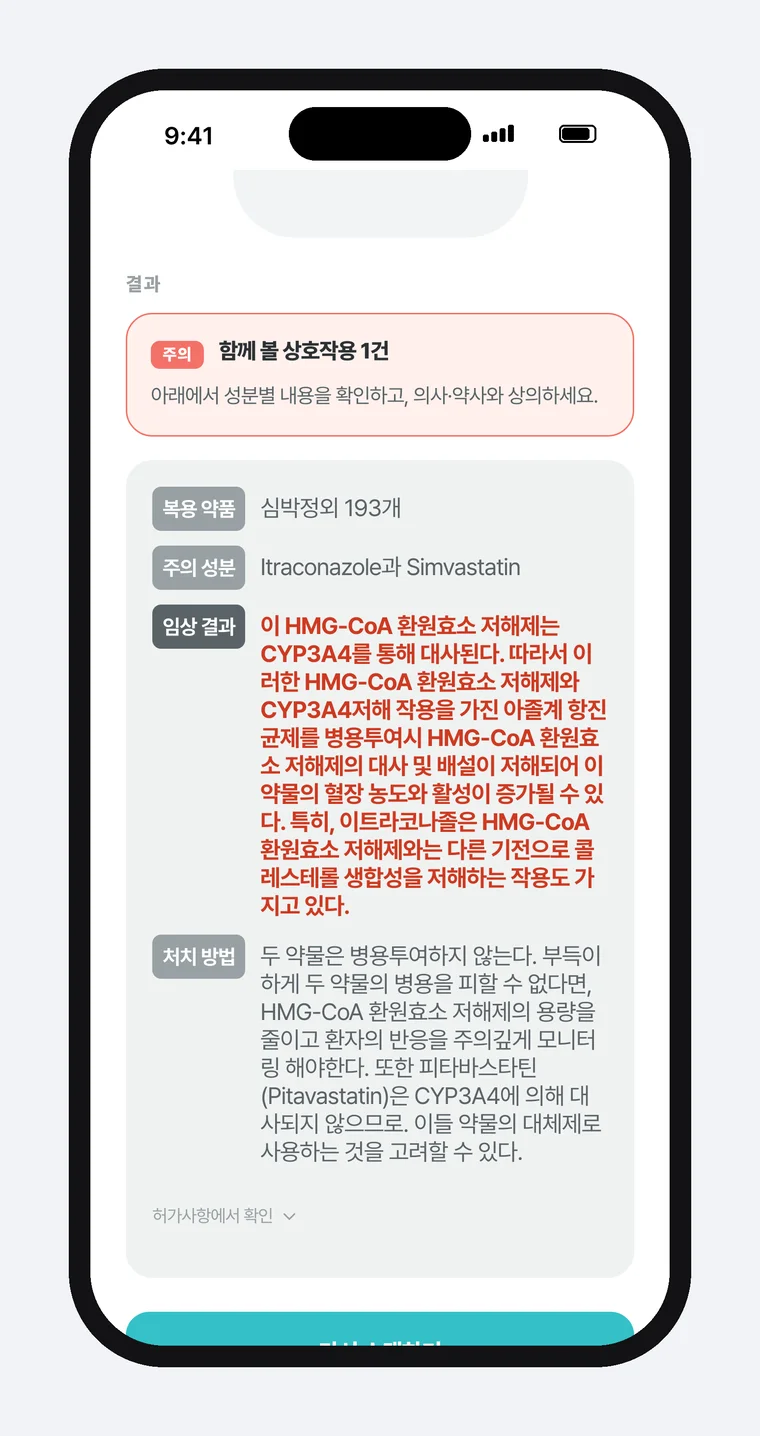
Each ingredient card has four rows. Caution ingredients (주의 성분) names the two clashing ingredients. Clinical result (임상 결과), in red, explains how the two ingredients clash in the body. What to do (처치 방법) is the response, such as not taking them together, or lowering the dose and watching closely.
Read the Medicine (복용 약품) row with care. It does not show your drug's name. It shows one example drug that contains the other ingredient, and if many drugs do, a count is added, as in “and 193 others” (외 193개). This is because the comparison happens per ingredient, not per drug name. To see which drug on your list was flagged, match the Caution ingredients against the ingredients of your own medicines.
PillCheck does not assign a risk grade to each combination. The interaction data it uses has no severity field, so instead of inventing a grade it shows the count and the What to do text as they are, and adds “Talk to your doctor or pharmacist”.
Unfold “Check the approved label” (허가사항에서 확인) at the bottom of the card and a link to the Ministry of Food and Drug Safety's drug information site, 의약품안전나라, appears. The approved label is the document the ministry sets when it approves a drug, covering its effects, dosage and precautions, and 의약품안전나라 is the ministry's site where that document can be looked up. Why this link is not called a “source” is explained in the decisions section below.
“Safe” only when every drug was compared
The easiest mistake in an interaction check is reading zero results as “safe”. Zero mixes two cases: everything was compared and no combination was flagged, or nothing could be compared. PillCheck gives the two different wording.
The green “Safe · No interactions found” (안전 · 상호작용이 확인되지 않았습니다) appears only when every condition holds: there are drugs on your list to compare against, the ingredients of the drug being checked were resolved, the number of drugs that could not be matched to ingredients is zero, and no drug was left out because its name could not be confirmed. Even then it carries the caveat “Based on your medication list. Check again when you add a new medicine.”
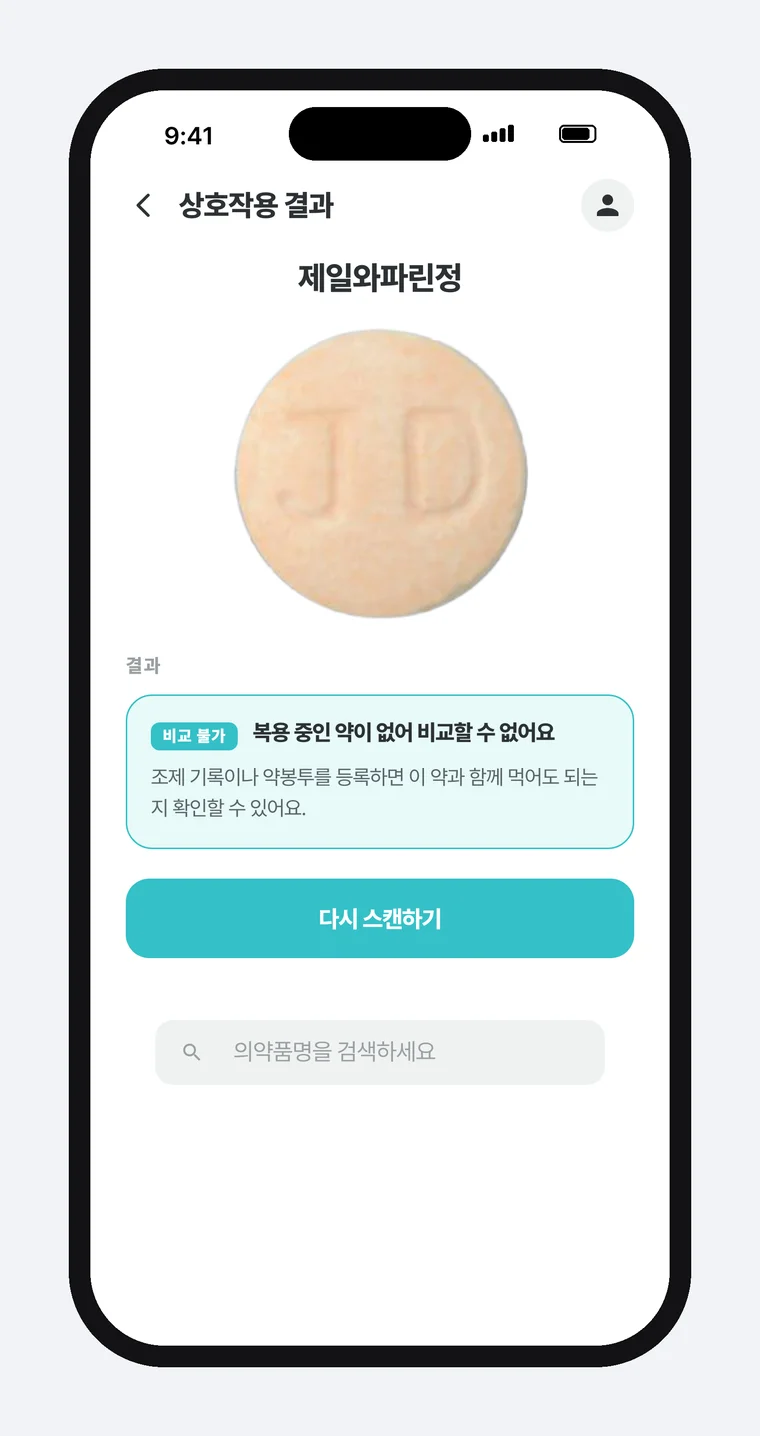
Otherwise it reads as follows. With no medicines being taken: “Cannot compare · No medicines being taken to compare with”. If the ingredients of the drug being checked could not be resolved: “Needs checking · Could not check interactions”. If some drugs could not be matched, it gives the count, as in “○ drugs could not be compared”. If the lookup itself fails, it shows “Check failed” with “It cannot be considered safe until it has been checked.”
The “Unknown” rows from the article on prescription photo registration lead here too. A drug left as “Unknown” because text recognition could not read it is excluded from the interaction check's input, and the result says “○ unconfirmed drugs were left out of the comparison”. Tapping that card takes you to the dispensing records screen, where you can fill in the row.
The first Interaction check screen follows the same principle. Nothing has been looked up yet on that screen, so the “Can I take this drug?” card uses the informational colour, not a verdict colour. The point is never to call something safe that has not been checked.
Decisions made while building it, and why
First, the link says “Check the approved label”, not “Source”. The responses from the interaction data PillCheck uses carry no marker of which literature the content came from. Putting a plausible citation there would be a made-up source. So instead of a source, it links to where the official approved label can be checked.
The link target was chosen with care as well. The first idea is to search 의약품안전나라 for the name in the Medicine row, but searching a name with “and 193 others” attached opens a zero-results page. So only drugs whose product number was confirmed from your medication list or search history link to that drug's detail page, and if no drug is confirmed, it opens the 의약품안전나라 search page with no query. A link that asks for one more search was judged better than one that leads to empty results.
Second, the web camera is not turned on inside the app. The PillCheck app shows web screens in a window inside the app, and in that window the web camera shows only a black box. So in the app, the app's own camera reads the barcode and goes straight to the result screen with the number it read. On older app versions that do not know the barcode camera, the screen shows “This app version can't use the barcode camera. Please search by drug name.” instead of a camera.
Third, a result is kept bundled with the drug and the list it was looked up with. Picking another drug from the search below the result screen re-runs the lookup while the screen stays in place. If the previous drug's warning or “Safe” showed under the new drug's name even for a moment before the new response arrived, that would be wrong guidance. So when the drug and list on screen differ from those of the response, no verdict is drawn, and when a new lookup starts the previous response is cleared first.
What to take away when building a screen that reports a check
Three things from PillCheck interaction check carry over to other work.
One, give “no problem found” and “could not check” different wording. Write down the conditions under which a zero result can be trusted, and use green only when all of them are met. Any job that reports “nothing wrong” qualifies: stock checks, contract reviews, attendance checks.
Two, match on a reference number or unit, not on names. Medicines with the same ingredient come under many brand names, and even ingredient spellings differ between data sources. If you are matching on values whose spelling drifts, such as customer or product names, decide first what to match on.
Three, do not invent a source where there is no evidence. If you hand an AI some material to organize today, add one line to the instructions: “If you don't know the source, leave the source field empty and list separately the official document where it can be checked.”