What PillCheck's medication timetable and reminders do
PillCheck is an app for recording the medicines you take and checking information about them. The previous part covered finding a medicine and reading its details. This part is about deciding when to take the medicines you recorded and getting a reminder at that time.
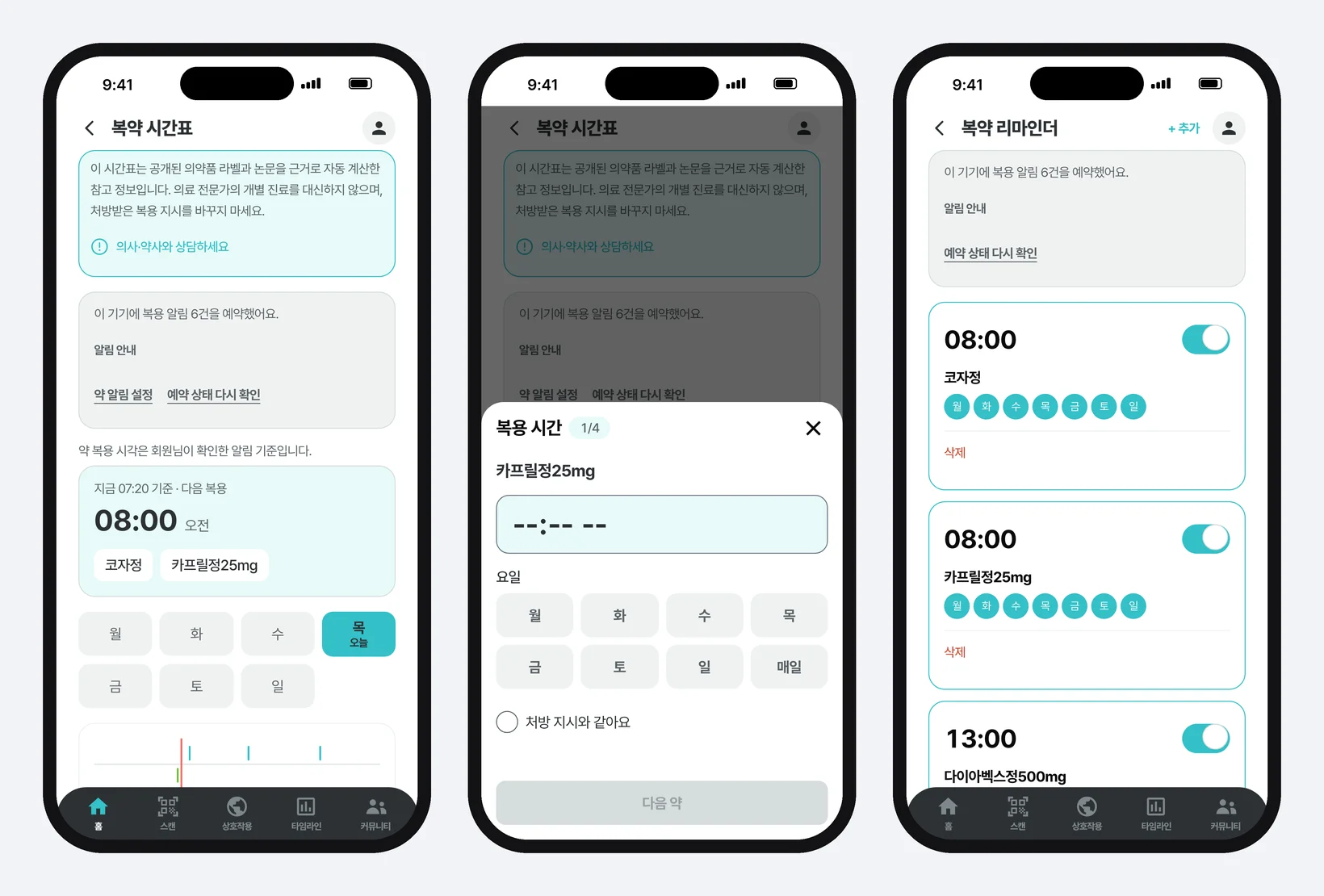
The feature has two screens. Medication timetable gathers which medicines and supplements to take, and when, across today on one screen. Medication reminders is the list of reminders: each card shows a time, a drug name and weekdays, with an on/off switch.
The reminders here are device notifications. Rather than a server firing off a message each time, the app hands the phone an instruction, “ring at this time,” in advance, like an alarm clock inside the phone. This piece calls that handing-over scheduling. Only an app installed on the phone can schedule, so on the web at www.pillcheck.co.kr you can view the timetable and save reminder times, but the reminders ring in the app. The web screen itself says, “You can get dose reminders in the PillCheck app.”
The top of the timetable always carries the same sentence: “This timetable is reference information calculated automatically from published drug labels and papers. It does not replace individual care by a medical professional; do not change the dosing instructions you were prescribed.” The timetable is not a tool for changing a prescription. It helps you not forget the times you take medicines as prescribed.
How to use it in the app
After signing in, it takes five steps. The timetable is built from your medication records, so your medicines need to be recorded first, using the methods from the earlier parts.
First, open Medication timetable from the Medication schedule section on the home screen. Second, tap Start setting times in the “Please set your dose times” card. A time-setting sheet slides up from the bottom and asks about one medicine at a time. Third, enter the dose time, choose the weekdays and tick “Same as the prescription.” You cannot move on without this check. Fourth, go through every medicine with Next medicine, and tap Create timetable at the end. Fifth, once saving finishes, the app asks for notification permission. You have to allow it for the phone to ring.
When a reminder rings, the lock screen shows “PillCheck reminder · It's time for your dose. Please check your schedule in the app.” Tap the Mark as taken button on the notification: the app opens and records that dose as taken. Tapping the notification body only opens the app, without recording anything.
To change a time or turn a reminder off later, go to Medication reminder settings via the timetable's reminder settings link or your profile. Use each card's switch to turn it on or off, and + Add to create another reminder.
If the app cannot load its screens because the internet connection is down, a Today's medication schedule screen appears instead. It shows today's schedule kept on the phone, and when you tap Mark as taken it notes “Marked · will send when connected” and sends it once the connection returns.
Supplements are spaced away from medicines
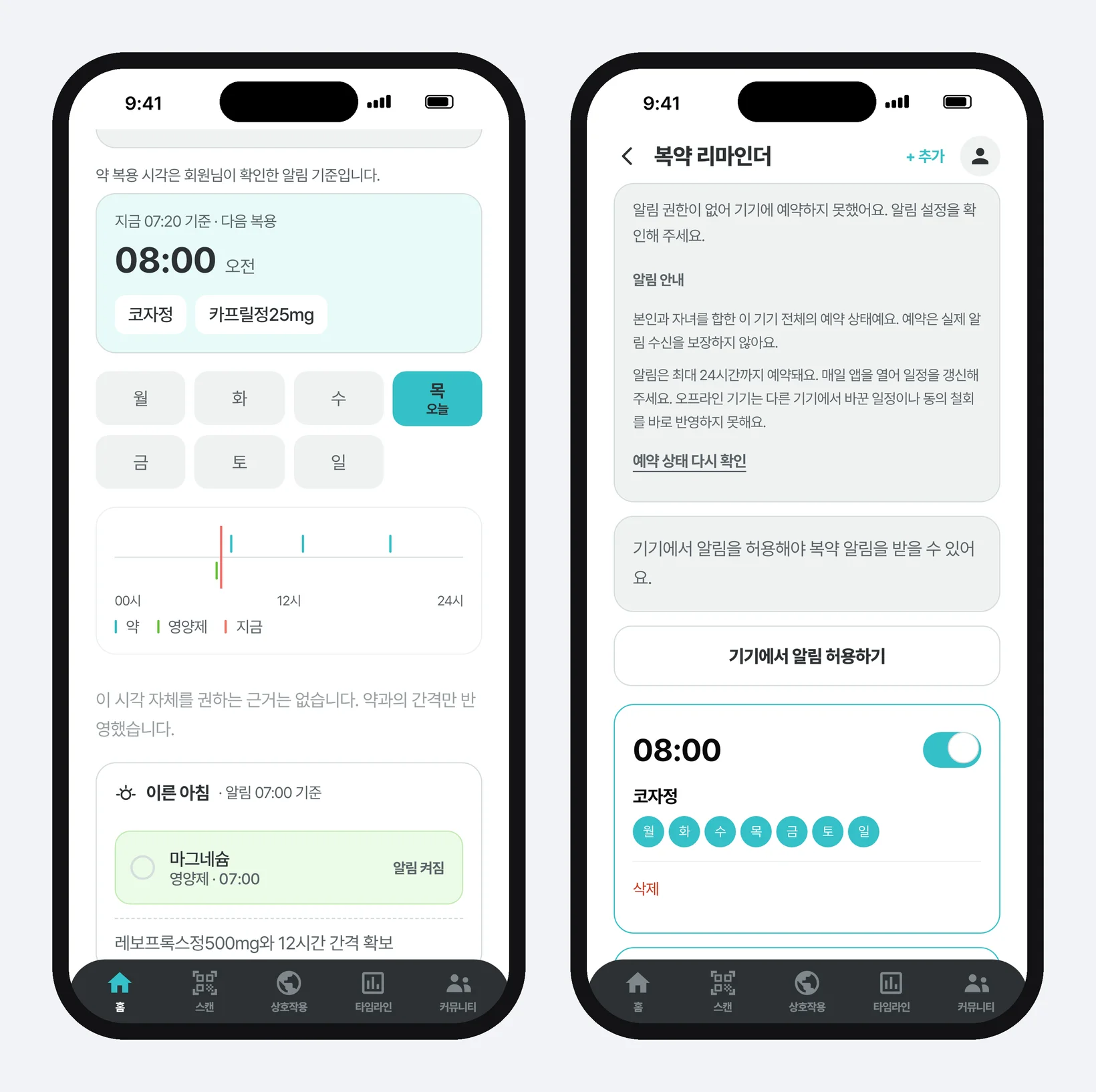
Type a name such as calcium or magnesium into the “Supplements you take” field below the timetable, and the supplement joins the timetable too. Supplements follow different rules from medicines. No prescription sets their time; instead, some must be kept a number of hours apart from certain medicines.
Those constraints come from drug labels. A label is the official document that comes with a medicine, and PillCheck uses wording from DailyMed, which publishes labels approved by the US Food and Drug Administration (FDA). For example, the label of levothyroxine, a thyroid hormone medicine, says to take it at least 4 hours apart from agents such as calcium, and the label of the antibiotic ciprofloxacin says to take it at least 2 hours before or 6 hours after products containing calcium, iron or zinc. PillCheck turns sentences like these into rules and places supplements outside those gaps, based on the medicines you take and the times you set for them.
When there is no evidence for a particular time, it says so. A slot chosen only to keep the gap carries the sentence “There is no evidence recommending this time itself. Only the gap from your medicines is reflected.” Combinations such as the blood thinner warfarin and vitamin K, where the question is whether to take them together at all rather than how far apart, are not placed on the timetable; they appear separately as a “Check with your doctor or pharmacist” warning.
Supplement reminders are turned on separately. Tap a supplement's reminder slot on the timetable or in the “Supplements you take” list to see the calculated time and weekdays, and it switches on only after you confirm and tap Turn on reminder. It starts off. For supplements with no medicines or no spacing rule, you enter a time for each dose yourself. If your medicines change later and the calculated time moves, PillCheck does not quietly change the reminder time; it shows the difference and asks you to confirm again. Supplement reminder settings are stored only on that phone and are not carried to other devices.
What happens behind a reminder
Medicine reminder times are saved to your account. The app reads this list from the server and schedules on the phone only the reminders due in the next 24 hours. Each time you open the app, return to it or edit a reminder, it checks with the server again and re-aligns the schedule. That is why the reminder guide says, “Reminders are scheduled up to 24 hours ahead. Open the app every day to refresh the schedule.”
A single phone holds at most 48 scheduled reminders. If family reminders push the total over that number, PillCheck does not silently drop some; it says, “You've exceeded the number of reminders that can be scheduled. Turn off schedules you don't use in reminder settings.”
The screens keep saving, scheduling and delivery apart. A time being saved to your account and a reminder being scheduled on the phone are different facts, and being scheduled does not guarantee the reminder will arrive. So when notification permission is off, it says “No notification permission, so nothing was scheduled on this device”; when nothing is scheduled, it says “No dose reminders are scheduled in the next 24 hours.” It states the phone's current state as it is, and Check scheduling status again lets you ask again. The scheduling guide also says, “Scheduling does not guarantee that the reminder is actually received.”
Decisions made while building it, and why
Reminders do not include drug names. People next to you can see your lock screen. Which medicine you take hints at what condition you have, so every reminder uses the same text: “It's time for your dose. Please check your schedule in the app.” What to take shows up after you open the app.
Scheduling only 24 hours ahead is also a deliberate line. Scheduling weeks ahead would keep reminders coming even if you never opened the app, but changes made in the meantime would reach the phone late. Reminders for a child managed from a guardian's account must stop when consent is withdrawn or the child turns 14, and the longer reminders are scheduled ahead, the later that stop arrives. That is why the limit is one day and every round is re-confirmed with the server.
The Mark as taken button opens the app. Recording a dose from the button alone while the app is closed came with no guarantee that the phone would reliably carry out that step. Having the app open once was judged better than a tap that leaves no record. Tapping the same notification twice records it only once.
Past times are not turned into “done.” On the home screen's medication schedule, a medicine whose time has passed is shown as “Passed.” The app does not know whether you actually took it. Marking it done just because the time passed would make you think you took a dose you forgot. Only what the user marks is done.
“Same as the prescription” in the time-setting sheet follows the same principle. The app cannot know whether a calculated time or the time you entered matches your prescription, so it saves only after a person confirms it.
What to take away when building a notification feature
Three things from PillCheck's medication reminders carry over to other work.
First, read your notification text on a lock screen. Check whether your automated notifications display customer names, amounts or diagnoses as they are; keep the text at the level of “there is something to check” and let people see the details after opening.
Second, do not lump “saved,” “sent” and “received” into one word. When you hand notification or sending automation to AI, ask it to report results split into these three. You will see right away where things stopped, which a single line saying “done” never shows.
Third, do not mark what you don't know as done. The fact that a time has passed and the fact that a task is finished are different. Leave items your automation could not confirm as they are, labelled “passed” or “unconfirmed.”