What PillCheck Drug Search does
The previous part covered Scan, which records the medicines you take from the QR code on a pharmacy envelope or a photo of a prescription. This part covers Drug Search and the drug detail screen, which you use whenever you are curious about a single medicine, whether or not you have recorded it.
Drug Search finds a medicine by name and opens its drug detail screen. That screen lists, in order, what the drug is used for (efficacy), the cautions you must know, medication guidance, and dosing and storage. Medication guidance means the explanation of how to take a drug and what to watch for that a pharmacist gives you when handing it over. PillCheck puts that into writing so you can read it again at any time.
You can use it without signing in. The PillCheck app shows the www.pillcheck.co.kr screens inside the app as they are, so the search and detail screens are the same in the app and on the web. PillCheck organizes and shows drug information. It does not replace care, prescriptions or medication guidance from a doctor or pharmacist. Talk to a doctor or pharmacist before changing or stopping a medicine.
How to use it in the app
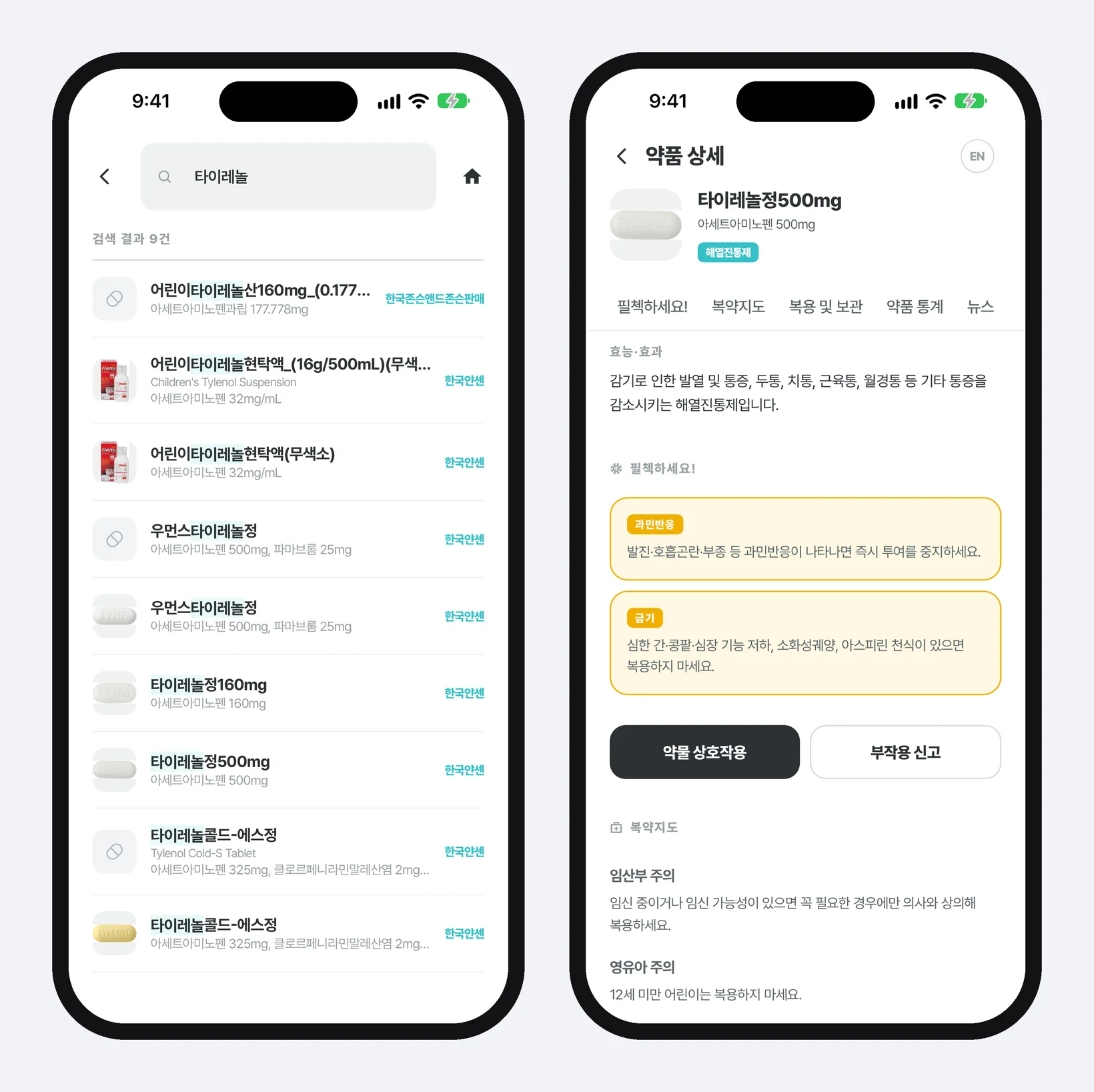
First, tap the magnifying glass (drug search) at the top right of the home screen. In the app, the magnifying glass at the top of the camera screen under Scan in the bottom menu opens the same search screen.
Second, type the drug name. The input field is already active when the search screen opens, so the keyboard comes up right away, on iPhone too. You do not need the full name. A few leading letters such as 「타이레」 work, and so does an English name such as 「tylenol」. There is no search button. Results update as soon as you stop typing.
Third, pick the row that matches the medicine in your hand. The count appears at the top, as in 「9 results」, and each row shows a pill photo (a placeholder when there is none), the drug name, the English name (when there is one), the ingredients and strength, and the manufacturer on the right. The letters you typed are highlighted inside the drug name. If several products have similar names, choose by strength and manufacturer.
Fourth, tap a row to open the drug detail screen. Tapping a tab at the top (Caution!, Medication guidance, Dosing and storage, Statistics, News) jumps straight to that part.
Fifth, clear the input field to see the drugs you opened recently. Medicines you check often can be opened from here without typing again. If you want to browse without knowing a name, you can also reach drug detail screens from 「All drugs」 on the home screen.
What the drug detail screen shows
At the top are the pill photo, drug name, ingredients and strength, and drug class (for example, antipyretic analgesic). Below that, 「Efficacy」 says in a sentence or two what the drug is used for.
「Caution!」 gathers the cautions you must know into yellow cards. For Tylenol 500mg there is a card telling you to stop at once if a hypersensitivity reaction appears, and a contraindications card. A contraindication means a condition in which you must not take the drug.
Below them are two buttons side by side. 「Drug interactions」 goes to a screen that checks whether the medicines you take affect each other (part 4 of this series covers it), and 「Report side effects」 goes straight to the adverse drug reaction reporting page of Korea's Ministry of Food and Drug Safety.
「Medication guidance」 is organized by item: pregnancy, infants and children, food interactions, drug interactions and underlying conditions. For Tylenol 500mg the food interaction item reads 「It can strain the liver, so be sure to avoid alcohol while taking it.」 「Dosing and storage」 covers storage, dosage and administration, and notes on how to take it.
If the original package insert is on file for a drug, a separate button opens that PDF. After that come 「Statistics」, which shows the diagnoses the drug was most often prescribed for along with gender and age shares, and 「News」, which collects recent articles found by the drug name.
What happens behind search and detail
Search does not ask for results at every keystroke. When typing pauses for 0.3 seconds, it asks the PillCheck server (the computer on PillCheck's side that holds the drug information) once. Instead of asking separately for 「타」, 「타이」 and 「타이레」, it sends only the one term where your hand stopped.
When you type fast, the answer to an earlier question can arrive after the answer to a later one. Drawing that answer as is would roll the screen back to a list that no longer matches what you typed. So only the answer to the last question sent is shown, and late answers to older questions are discarded.
The recent search list keeps only the drugs you actually opened from the results. It is stored not in your PillCheck account but in the browser storage on that phone, and it keeps only text such as the name and date, leaving out the pill photo. So the list does not follow you when you sign in on another phone.
Each drug detail screen has its own address. The product number and drug name sit at the end of the address, and the server sends the screen already filled with content. If you send the link to a family member, they open the same drug screen, and search engines can read that drug's guidance too.
How the screen says who wrote the guidance
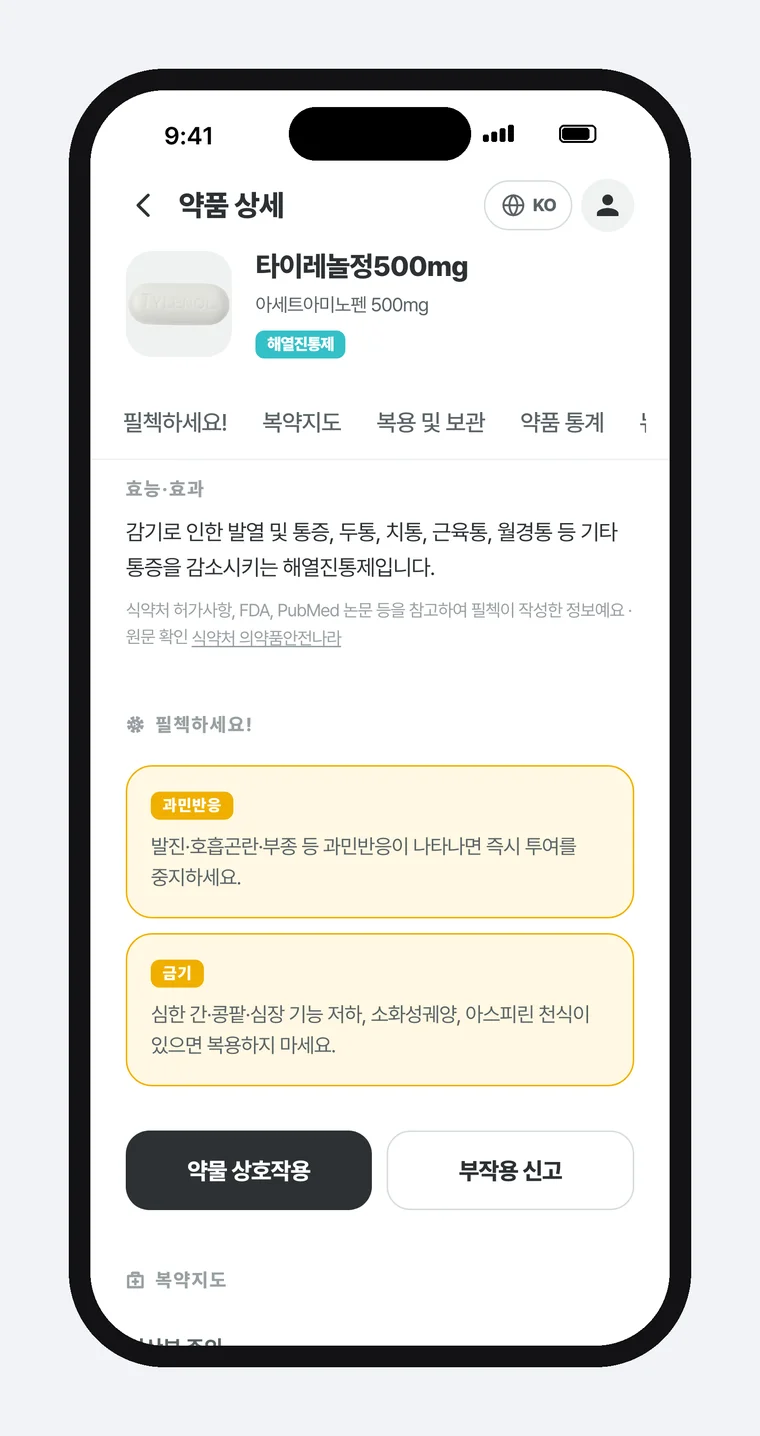
Right under the efficacy sentence there is one line of small grey text: 「Written by PillCheck with reference to MFDS-approved labels, the FDA and PubMed literature · Original label: MFDS Drug Safety Portal」. The MFDS (Ministry of Food and Drug Safety) is the Korean government agency that approves medicines, and the approved label is the document of uses, dosing and cautions approved when a drug is licensed for sale. The FDA is the US Food and Drug Administration, and PubMed is a medical literature search service run by the US National Library of Medicine. The Drug Safety Portal is the MFDS website for drug information.
The line deliberately avoids the word 「source」. The efficacy, caution, guidance and storage text on the screen is not a copy of the approval documents. PillCheck rewrote it in plain language with reference to those materials. Writing 「Source: MFDS」 would make it read as a government document copied word for word. So the line is split in two. The first half says who wrote it from what, and the second half says where to check the original.
Tapping the 「MFDS Drug Safety Portal」 link opens that product's page on the portal when the product number matches, and a search by drug name when it does not. This lets you put PillCheck's guidance and the official approved original side by side and compare them.
The line appears only once. The four groups (efficacy, cautions, medication guidance, storage) are all guidance written the same way, so instead of repeating the line in each group it sits once under efficacy. For a drug with no efficacy sentence, it moves inside 「Caution!」. The package insert PDF button carries its own wording, 「the original package insert approved by the MFDS」, so the screen separates what PillCheck wrote from the original document.
The App Store review guidelines also say that medical apps which could provide inaccurate information may be reviewed with greater scrutiny. The wording of this line was refined with that guideline in mind as well.
Switching to seven languages
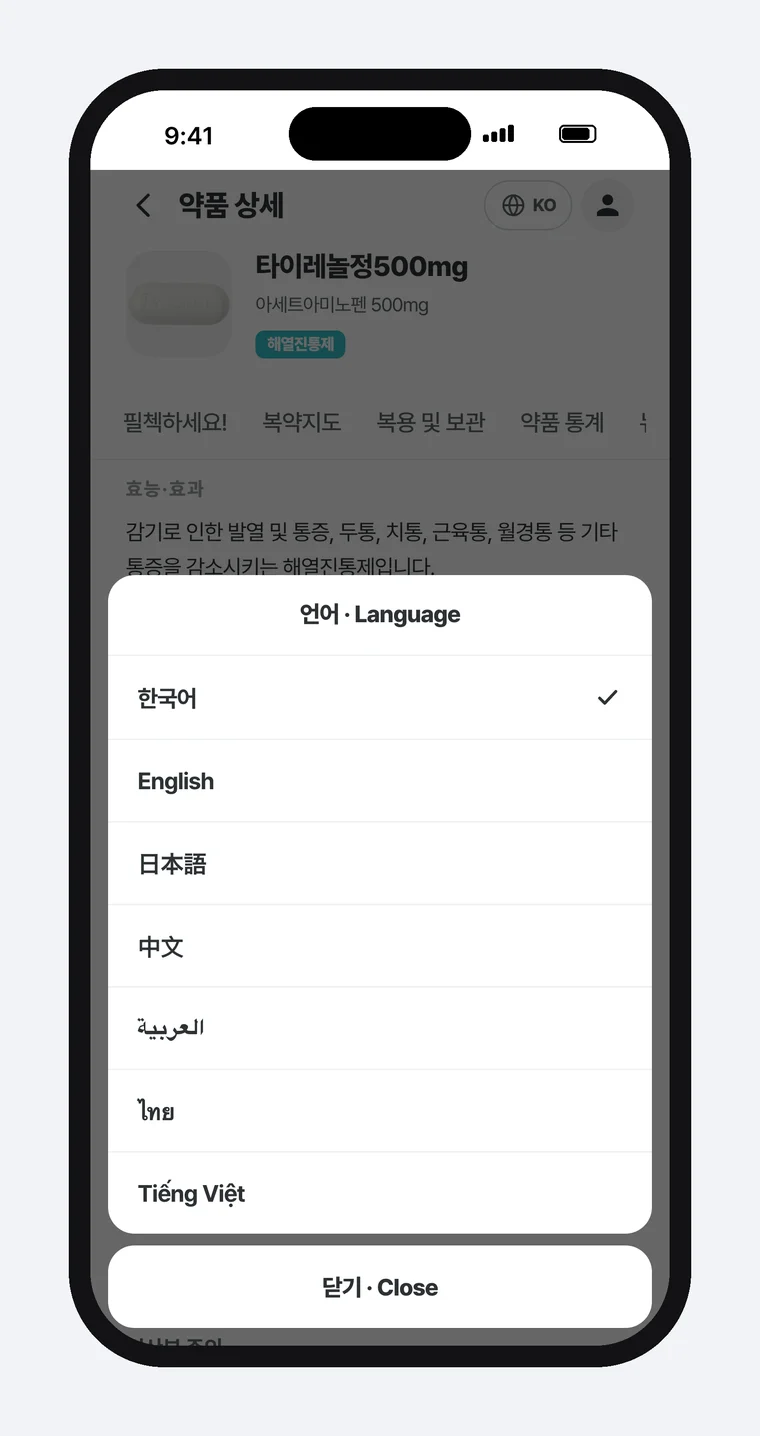
Tap the globe button (KO) at the top right of the drug detail screen to open the language picker. There are seven choices: Korean, English, Japanese, Chinese, Arabic, Thai and Vietnamese.
The list writes each language in its own name: 「日本語」 rather than the Korean 「일본어」, 「Tiếng Việt」 rather than the Korean 「베트남어」. The list is where someone who cannot read Korean looks for their own language, so writing the names in Korean would stop exactly the people who need it from choosing.
When you switch, the efficacy, caution, guidance and storage text changes to that language. Fixed screen text such as tab names appears in English when the language is not Korean, and the drug name stays in Korean. For the five languages other than Korean and English, the screen waits up to 3 seconds for the translation, and any sentence that does not arrive in time or has no translation is shown in English. The chosen language is remembered on that phone and carries over to the next drug you open.
It is handy when you show drug information to a family member or colleague who is not comfortable with Korean.
What to take away when you hand information to others
Two things from PillCheck Drug Search carry over to other work.
First, do not lump everything under the single word 「source」. Write two things separately: who wrote it with reference to what, and where the original can be checked. If you attach only 「Source: X」 to a text that summarizes or rewrites the original, readers will believe it is the original copied as is. Today, pick one guide or internal document your team passes around and add one line at the end: 「Compiled by B with reference to A · Original: (link)」.
Second, write a list of choices in the words of the person choosing. Just as the language list names each language in that language, name menus and options with the words users look for, not the words of the people who built them.
If you use PillCheck, search for one medicine you take now and tap the original label link. Put PillCheck's guidance next to the approved original and you can see for yourself which parts were turned into plain language.