Why a Handful of Commands Changes How You Work
Claude Code adoption has grown fast, but usage varies enormously. Some people run several agents in parallel; others, when a bad prompt tangles the code, start over from scratch.
Often there is no need to start over. The undo is already built in — people just don't know it is there. Part of the reason is cadence: Claude Code ships often, sometimes several versions in a day, so how anyone learns about a new feature is largely accidental.
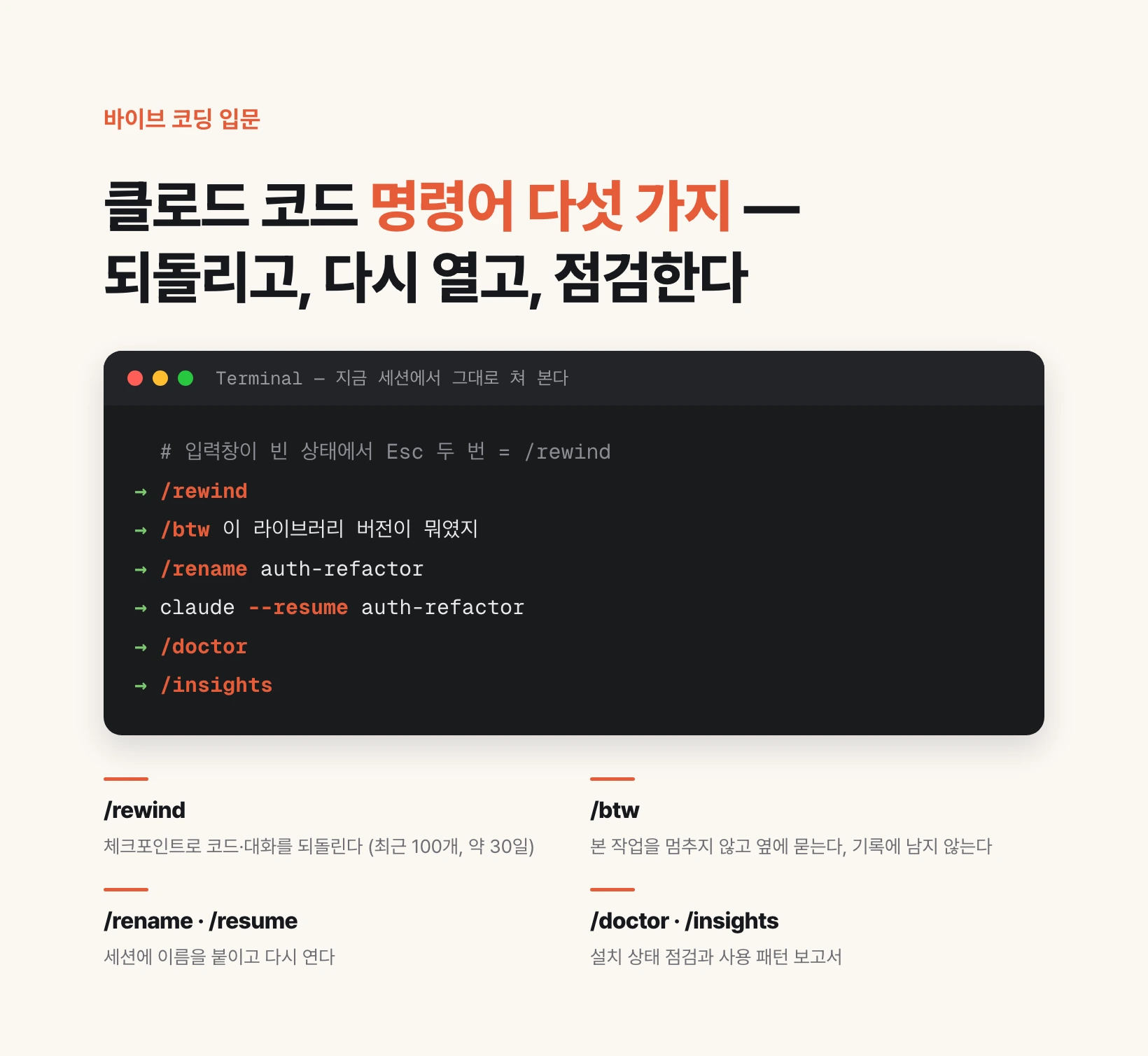
All five below are built-in slash commands. Nothing to install: type a slash in the prompt and the name. Typing one wrong does nothing, so you can try them in whatever session is open right now.
The behavior described here was verified against the official documentation on September 5, 2026. Details can shift with versions, so check the docs if something looks off.
1. /rewind — Roll Ruined Work Back to a Checkpoint
Checkpoints come first. Claude Code automatically captures the state of your files before every prompt you send — like a save file written on every turn of a game. Each of those save points is a checkpoint, and a session keeps the 100 most recent.
Checkpoints are stored with the conversation, so they survive quitting and resuming a session. They are not permanent, though: the retention sweep clears a session's file snapshots roughly 30 days after it last wrote one (raise it with `cleanupPeriodDays`).
Two ways to open it: run `/rewind`, or press Esc twice while the prompt input is empty. If the input has text, a double Esc clears the text instead. The cleared text goes to your input history, so press Up to recall it.
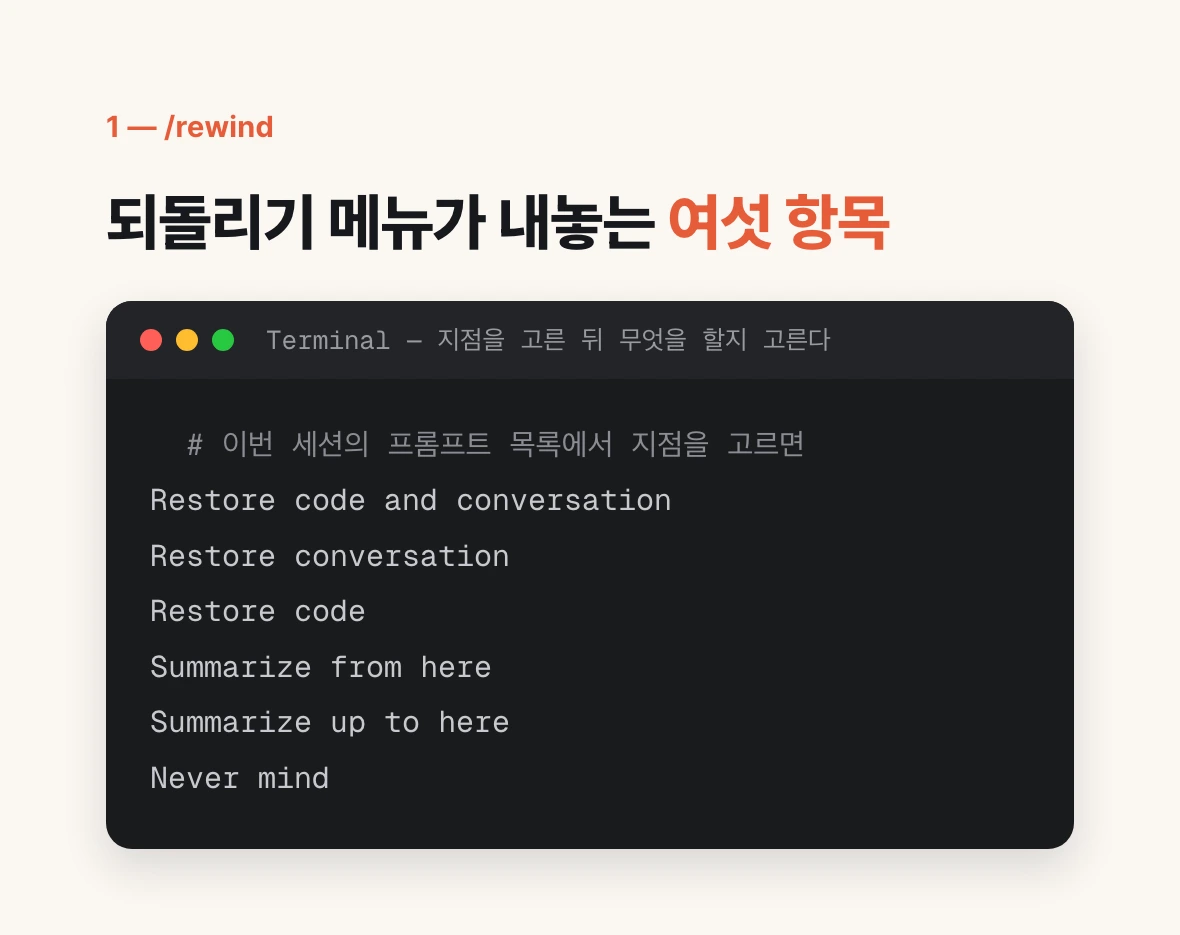
The menu lists every prompt you sent this session. Pick the point you want, then pick what to do with it.
Restore code and conversation   revert both code and conversation to that point
Restore conversation            rewind the conversation, keep the current code
Restore code                    revert the files, keep the conversation
Summarize from here             compress the conversation from here forward
Summarize up to here            compress the conversation before this point
Never mind                      go back to the list, change nothing
Why Restoring Only the Code Is the Useful One
The third option — restore code only — is the one that pays off when you are experimenting.
Have Claude try a new approach. If the result is bad, roll back only the code. The files return to their pre-attempt state, but the conversation recording that the approach failed stays. Claude keeps that context and turns in a different direction immediately, so you never restate the requirements.
The inverse also happens: the result is fine but the conversation has grown long and messy. Roll back only the conversation. The code stands and the context gets tidied.
The fourth and fifth options are not undo at all — they summarize. They compress the conversation before or after the selected point to free context window space. Files are untouched, and the original messages remain in the transcript. Highlight a summarize option with the arrow keys and type instructions where the row reads `add context (optional)` to steer what the summary keeps.
The two code-restore options appear only when the selected checkpoint has tracked file changes to revert. With no edits captured after that point, the menu offers only the conversation options.
What Rewind Cannot Undo — Know This or Get Hurt

Checkpointing tracks only files Claude changed through its file editing tools. Four things fall outside, and trusting rewind without knowing them means carrying on from a state you believe was reverted and wasn't.
First, files changed by shell commands are not tracked. Anything removed or moved by `rm`, `mv`, or `cp` will not come back.
Second, edits made by subagents usually are not restored. Background agents fall here; use git to revert those.
Third, symlinked and hard-linked paths are skipped, with a `Restored the code, but skipped N files` warning.
Fourth, files you edited by hand outside Claude Code, and files touched by another concurrent session, are not captured.
This is why the documentation states plainly that checkpoints are not a replacement for version control. They are for quick, session-level recovery; permanent history and collaboration belong to git.
2. /btw — Ask Beside the Work Without Breaking It
`btw` is short for by the way. Use it when Claude is mid-task and something else suddenly comes to mind.
Until now there were two bad options. Ask outright and you break the flow and litter the transcript. Open a new session and it has none of your context.
`/btw your question` parks the question to the side. The main work keeps running, the answer shows separately, and because it sees the whole conversation you need not re-explain anything. Read it, close it, and the question leaves no trace in the transcript.
Run `/btw` with no question and it shows your most recent side question so you can browse earlier answers. If you have not asked one yet, it prints a usage line.
It is also cheaper. In a long session every question gets more expensive as the whole conversation is re-read, and this path reuses the cached conversation instead. The longer the session, the more it matters.
3 & 4. /rename and /resume — Sessions Do Not Disappear
If you thought closing the terminal loses the conversation, it does not. The documentation opens with the definition: a session is a saved conversation tied to a project directory.
Every conversation is being saved locally as a session. Quit the terminal, run `/clear` — you can still pick up where you stopped.
Without a name, though, finding it later is hard, which is why these two commands are a pair. Run `/rename <name>` during a session and the name also appears on the prompt bar. Next time, `/resume <name>` takes you straight back.
You don't have to remember the name. Run `/resume` alone to open the session picker, move with the arrow keys, and press Space to preview what a session contains. From a fresh terminal, `claude --resume` opens the same picker.
More than the conversation comes back: the full history including tool calls and results, the model the session was using, and scheduled tasks that have not expired.
/rename auth-refactor      ← name the current session

(close the terminal, open it again)

claude --resume auth-refactor   ← jump straight back in
claude --resume                 ← forgot the name? pick from the list
claude --continue               ← continue the most recent session here

(switching conversations from inside a session)

/resume auth-refactor
5. /insights — Get a Report on How You Actually Work
It is one line in the docs and easy to skip past, but this command analyzes your recent sessions on this machine and writes an HTML report.
Three things go in: which projects you work in, how you use Claude Code, and where things go wrong. That last one is the point.
Concretely: activity statistics like how many sessions you created and across how many days, which project takes most of your time, and whether you plan first or throw work over and fix it as you go. It flags where you got stuck repeatedly and what you kept re-requesting. It ends with suggestions — custom commands or skills worth building.
Running it is `/insights` and nothing else. The report lands in `~/.claude/usage-data/` as HTML, in English by default. It is not available in cloud sessions.
Run it about once a month. When the data shows you repeating the same kind of request, that repetition is exactly what should become a skill or a custom command.
6. /doctor — A Checkup for Your Install
Where `/insights` looks at your habits, `/doctor` looks at your installation and configuration. Its alias is `/checkup`.
The sweep is wide. It checks for duplicate or leftover installs, `PATH` problems, and settings files it cannot parse. It finds skills, MCP servers, and plugins you don't use against what they cost you in context, flags slow hooks, and checks your release channel for a newer version.
It works on `CLAUDE.md` too: deduplicating local files against checked-in ones, trimming checked-in files by cutting what Claude could derive from the codebase, and migrating always-loaded guidance into skills and nested `CLAUDE.md` files that load on demand.
It does not change things behind your back. It reports findings first and asks for confirmation before changing anything, so you can take all of it or pick.
To see installation diagnostics without starting a session, run `claude doctor` from the terminal. It prints read-only results.
What to Try Today
None of the five has anything to undo. Run each once in whatever session is open.
Start by emptying the input and pressing Esc twice. Just confirm this session's checkpoint list appears, then leave with `Never mind`. Knowing that list exists is what separates the next tangled-code moment from a rewrite.
Next, `/rename` the work you're doing now. Close the terminal and come back with `claude --resume <name>`.
Then run `/doctor`. How many unused skills and MCP servers are eating context is usually the first thing that jumps out. After that, read a month of yourself with `/insights`.
Finally, skim the official command list once. There are over a hundred and you don't need them all, but knowing what kinds of work already have a command gives you the search term next time you're stuck. Releases are frequent, so check the changelog now and then.