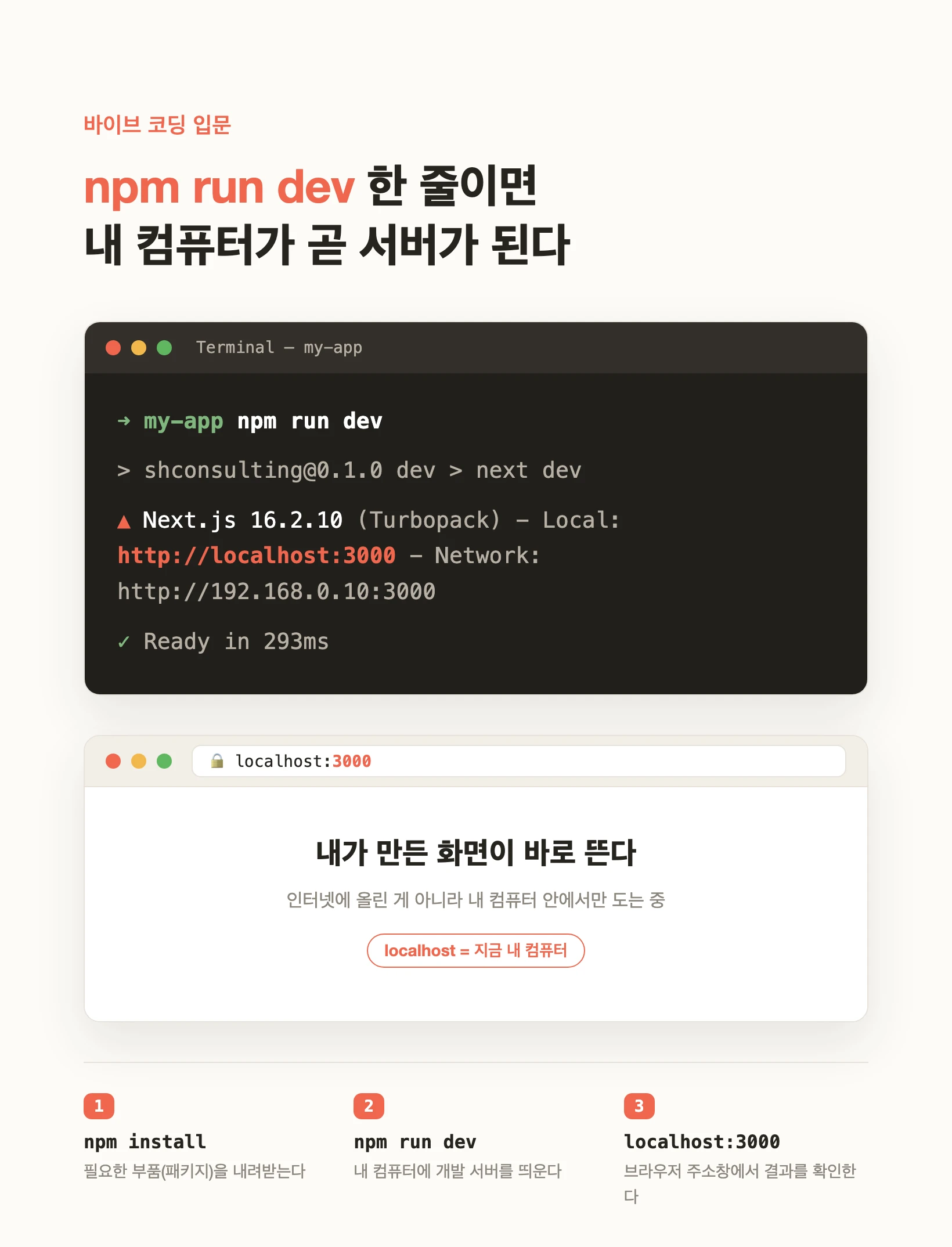
What happens when you run npm run dev
When you build for the web with vibe coding, almost everyone hits the same first wall: the code is written, but you have no idea where to look at it. The answer isn't deploying to the internet — it's running it on your own computer first, and that starts with one line: npm run dev. Open a terminal in the project folder and type it, and a development server starts.
A dev server is a program that turns your code into a web page and shows it live. A few seconds after you run the command, the terminal prints one address line — 'Local: http://localhost:3000'. Paste that into your browser's address bar and the screen you just built appears at once. Edit the code and save, and the screen updates without a refresh, because the dev server watches for file changes and redraws. That's exactly why it's good for checking as you build.
Where does localhost:3000 point
localhost is not someone else's server — it's the name for the very computer you typed the command on. In numbers it's 127.0.0.1, and on any machine it always means 'this computer itself.' So a screen served at localhost isn't on the internet; it runs only inside your machine and, by default, isn't even visible to others on the same network.
The 3000 after it is the port number. Think of the computer as a building with many rooms (doors); this app is using room 3000. You can run several apps on one computer at the same time, and as long as they use different room numbers they don't collide. The default differs by tool — Next.js and React use 3000, while others use 5173 or 8000. You don't need to memorize it; just follow whatever address the terminal printed.
What npm is, and what package.json does
npm is the tool that runs that command. The name is short for Node Package Manager, and it acts as the manager that downloads the parts (packages) a JavaScript project needs and runs its defined commands. It comes bundled when you install Node.js — the runtime that lets JavaScript run on a computer — so there's usually nothing extra to install.
Inside the project folder is a file called package.json. It lists the parts this project uses and the run-names (scripts) like 'dev', 'build', and 'start'. Each name is wired to the real command to run — if 'dev' is wired to 'next dev', then typing npm run dev makes npm find and run that 'next dev' for you.
Because of this structure, even when the underlying command differs from tool to tool, you only have to remember npm run dev. For a project you just cloned, though, there's one more step first — npm install. That command downloads the parts listed in package.json from the internet into a node_modules folder. Without the parts the server won't start, so for a new project, install comes first.
Start to finish — the order of the three commands
So the order is always three steps: (1) npm install to fill in the parts, (2) npm run dev to raise a dev server on your own computer, and (3) localhost:3000 in the browser's address bar to check it.
Below is what the terminal actually prints when you run npm run dev, and the scripts part of package.json that shows where the command is defined. When you're done and want to stop the server, press Ctrl+C in the terminal. Deploying to the public internet is the story only after all of this runs cleanly on your machine.
➜  my-app npm run dev

> my-app@0.1.0 dev
> next dev

▲ Next.js 16.2.10 (Turbopack)
- Local:        http://localhost:3000
- Network:      http://192.168.0.10:3000

✓ Ready in 293ms{
"name": "my-app",
"scripts": {
"dev": "next dev",
"build": "next build",
"start": "next start"
}
}Where beginners get stuck
If you see 'port already in use', it means another program is already using room 3000. This commonly happens when you didn't stop an earlier server with Ctrl+C. Usually the tool just moves to another number like 3001 on its own, so follow the new address the terminal prints.
If a command returns 'command not found', Node.js isn't installed yet — install it from nodejs.org and npm comes with it. A 'missing script' error means that name isn't in package.json's scripts, so check the real name (maybe start instead of dev). And if nothing shows up at all, the first thing to check is whether you skipped npm install.