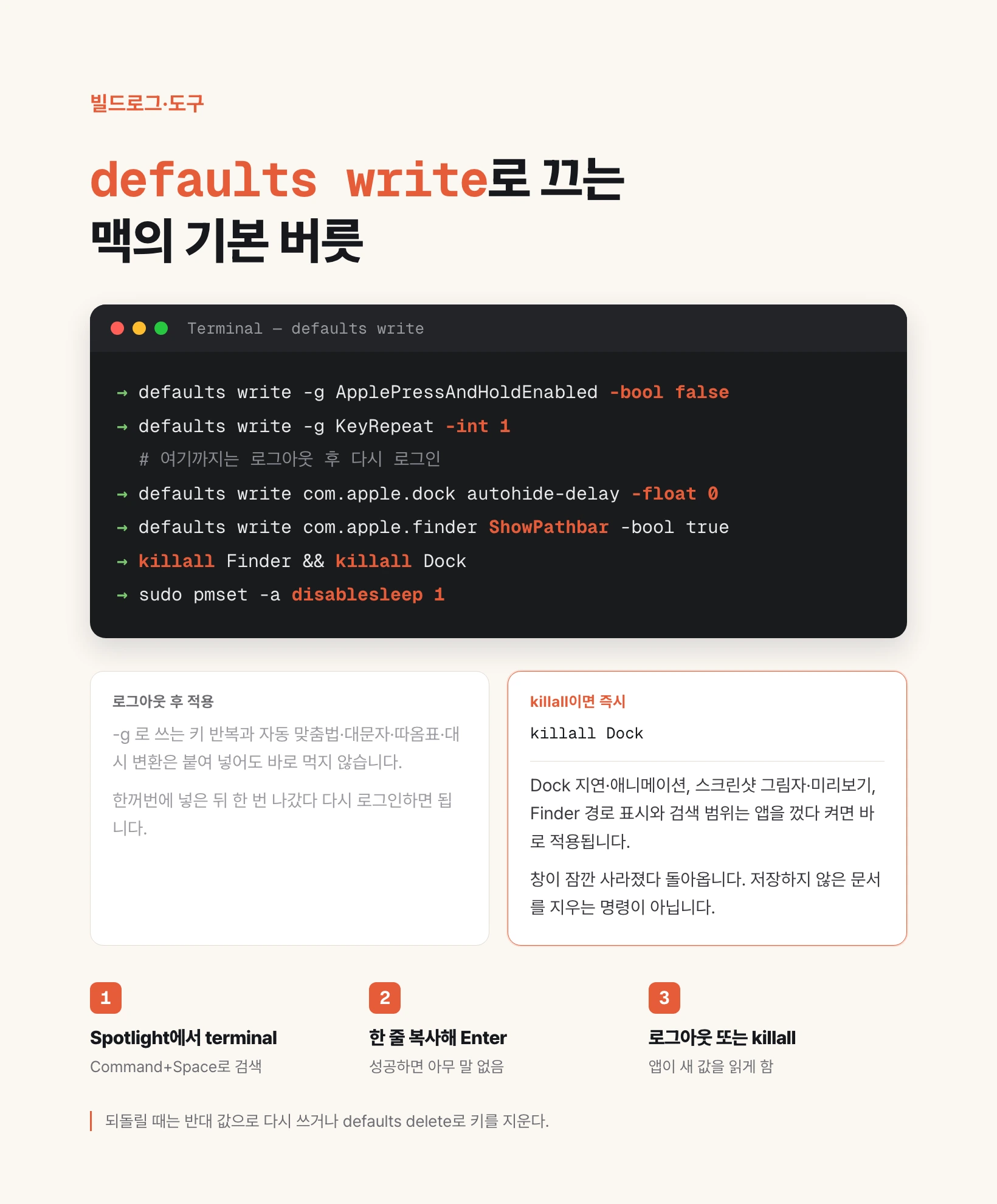
How to run defaults write in Terminal
These commands come from the YouTube video “15 hidden macOS cheat keys” by 코드깎는노인. The video walks through the defaults that get in the way right after you buy a Mac for vibe coding. What follows is that list, unpacked for a first-time Terminal user, with the screenshot path pointed at your own home folder.
Terminal is not a developer-only app. It is a window that runs one line when you press Enter. Open it in either of two ways. Click the magnifying glass at the top right, or press Command and Space together. That search window is Spotlight. Type terminal and open the black icon.
defaults is the pile of settings each Mac app keeps. write means write a value into that pile. -g applies to the whole Mac, not one app. A name like com.apple.dock targets that app only. -bool false turns something off, -bool true turns it on, -int 1 is the integer 1, and -float 0 is zero.
Copy a whole line, paste it into Terminal, and press Enter. Silence usually means success. Hidden settings rarely talk back. A red message means that line failed — type it again.
Key repeat and automatic text fixes
On Windows, holding A types a, a, a. The Mac default is different. An accent picker appears. That helps when you need an accented letter. It blocks repeat when you hold an arrow or delete key in an editor.
The first line kills the picker and restores repeat. The second line sets repeat to the fastest step — faster than the Keyboard slider in System Settings. These two lines do not apply immediately. Log out and log back in.
defaults write -g ApplePressAndHoldEnabled -bool false
defaults write -g KeyRepeat -int 1
Turn off spelling, caps, quotes, and dashes
macOS rewrites what you type in the name of convenience. It corrects spelling, capitalizes the first letter, and turns periods, quotes, and dashes into print-style characters. In chat you barely notice. In code those pretty characters are bugs. A straight quote (") that becomes a curly quote still looks like a quote to you and a different character to the program.
These five lines turn off spelling correction, auto-caps, period substitution, smart quotes, and dash substitution. They often need a log out, same as key repeat. Paste them together, then leave and come back once.
defaults write -g NSAutomaticSpellingCorrectionEnabled -bool false
defaults write -g NSAutomaticCapitalizationEnabled -bool false
defaults write -g NSAutomaticPeriodSubstitutionEnabled -bool false
defaults write -g NSAutomaticQuoteSubstitutionEnabled -bool false
defaults write -g NSAutomaticDashSubstitutionEnabled -bool false
Hide the Dock, then kill its delay and animation
The row of icons at the bottom is the Dock. It shows running apps and eats that much screen. Option+Command+D hides it. The same shortcut brings it back. When it is hidden, moving the pointer to the bottom edge brings it up — after a short wait.
The first line removes that wait. The second line removes the slide animation. && means “run the next command after this one finishes.” killall Dock quits and relaunches the Dock so it rereads the values. The bar vanishes for a moment and comes back. It does not delete unsaved documents.
defaults write com.apple.dock autohide-delay -float 0 && killall Dock
defaults write com.apple.dock autohide-time-modifier -float 0 && killall Dock
Cut window, scroll, and Finder animation too
Delay is not only a Dock problem. Opening and resizing windows, scrolling, full-screen transitions, and Mission Control all carry short animations. Harmless for a day or two. They add up if you sit at the machine every day. This is the bundle from the video.
NSWindowResizeTime 0.001 makes resize nearly instant. Finder’s DisableAllAnimations and the Dock launch and Mission Control timings go off as well. Restart Finder and Dock at the end. Some keys are less visible depending on the macOS version or the app. The lines the video actually ran are this set.
defaults write -g NSAutomaticWindowAnimationsEnabled -bool false
defaults write -g NSScrollAnimationEnabled -bool false
defaults write -g NSWindowResizeTime -float 0.001
defaults write -g NSDocumentRevisionsWindowTransformAnimation -bool false
defaults write -g NSToolbarFullScreenAnimationDuration -float 0
defaults write -g NSBrowserColumnAnimationSpeedMultiplier -float 0
defaults write -g NSScrollViewRubberbanding -bool false

defaults write com.apple.finder DisableAllAnimations -bool true

defaults write com.apple.dock launchanim -bool false
defaults write com.apple.dock autohide-delay -float 0
defaults write com.apple.dock autohide-time-modifier -float 0
defaults write com.apple.dock expose-animation-duration -float 0

killall Finder
killall Dock
Screenshot shadow, preview, and folder
macOS can capture the screen. Shift+Command+4 lets you drag a region. Hold Control as well and the image goes to the clipboard instead of a file. Press Space in that mode to pick a whole window.
A window capture includes the drop shadow by default. disable-shadow true crops to the window. The thumbnail that pops up at the lower right after a shot goes away when show-thumbnail is false.
The default folder is the desktop. Frequent shots bury the desktop in files. Create a folder, then Option-click it and choose Copy as Pathname. Put that path after location. The example below uses Desktop/screenshots under your home folder. The video used another user’s path, so you must change it to yours. If the folder does not exist, run the mkdir line first.
defaults write com.apple.screencapture disable-shadow -bool true
defaults write com.apple.screencapture show-thumbnail -bool false
mkdir -p "$HOME/Desktop/screenshots"
defaults write com.apple.screencapture location -string "$HOME/Desktop/screenshots" && killall SystemUIServer
Make Finder behave like Explorer
Finder is the Mac file window, the counterpart of File Explorer on Windows. By default the title shows only the current folder name. Hold Option and a path appears at the bottom — inconvenient if you need it every time. Turn on the full path in the title, plus the path bar and status bar, and you always see where you are and how many files sit there.
The search field at the top right searches the whole Mac by default, even when a folder is open. Set FXDefaultSearchScope to SCcf to search the current folder. _FXSortFoldersFirst puts folders above files. FXEnableExtensionChangeWarning false stops the alert when you change an extension. An extension is the part after the last dot in a file name. It tells the Mac what kind of file it is.
defaults write com.apple.finder _FXShowPosixPathInTitle -bool true
defaults write com.apple.finder ShowPathbar -bool true
defaults write com.apple.finder ShowStatusBar -bool true
defaults write com.apple.finder FXDefaultSearchScope -string "SCcf"
defaults write com.apple.finder _FXSortFoldersFirst -bool true
defaults write com.apple.finder FXEnableExtensionChangeWarning -bool false
killall Finder
Quit Finder and hide desktop icons
Other apps have a Quit menu. Finder does not, by default. QuitMenuItem adds Finder > Quit Finder. If Finder is the only open window, quitting it also takes the desktop with it, because the desktop is part of Finder. Close the last remaining app and Finder comes back. The video treats this less as a must-have and more as a way to see how the pieces connect.
Before a screen share, you can hide a messy desktop. CreateDesktop false hides the icons. true brings them back. The files themselves are not deleted.
defaults write com.apple.finder QuitMenuItem -bool true && killall Finder

# Hide icons
defaults write com.apple.finder CreateDesktop -bool false && killall Finder
# Show icons again
defaults write com.apple.finder CreateDesktop -bool true && killall Finder
A Mac that hosts an agent should not sleep
The last line is for people who leave a Mac on as a small server. If the machine sleeps while an agent is waiting for a request, the answer never comes back. sudo pmset -a disablesleep 1 turns system sleep off. sudo means it needs an administrator password. Characters do not appear as you type. That is normal. Press Enter.
Do not put this on a laptop that runs on battery. The machine will try to stay awake even with the lid closed. To undo it, run the same line with 0 instead of 1.
sudo pmset -a disablesleep 1
# undo
sudo pmset -a disablesleep 0
One paste bundle, and when each line applies
Below is everything except sleep. The screenshot path uses your home folder. The key group needs a log out after you paste. The rest apply when the three killall lines at the bottom run. Run the sleep command separately, and only on a Mac that stays plugged in.
| Group | What it changes | When it applies |
|---|---|---|
| Key repeat and auto-correct | Press-and-hold, spelling, quotes, dashes | Log out, then log in |
| Dock | Delay and slide after hide | killall Dock |
| Window and scroll animation | Windows, scroll, Mission Control, Finder | killall Finder and Dock |
| Screenshots | Shadow, thumbnail, save folder | killall SystemUIServer |
| Finder | Path, search scope, folders first, extension warning, quit | killall Finder |
| Desktop icons | Hide or restore icons only | killall Finder |
| Sleep | Disable system sleep | Immediately after sudo. Not for battery Macs |
defaults write -g ApplePressAndHoldEnabled -bool false
defaults write -g KeyRepeat -int 1
defaults write -g NSAutomaticSpellingCorrectionEnabled -bool false
defaults write -g NSAutomaticCapitalizationEnabled -bool false
defaults write -g NSAutomaticPeriodSubstitutionEnabled -bool false
defaults write -g NSAutomaticQuoteSubstitutionEnabled -bool false
defaults write -g NSAutomaticDashSubstitutionEnabled -bool false

defaults write com.apple.dock autohide-delay -float 0
defaults write com.apple.dock autohide-time-modifier -float 0
defaults write -g NSAutomaticWindowAnimationsEnabled -bool false
defaults write -g NSScrollAnimationEnabled -bool false
defaults write -g NSWindowResizeTime -float 0.001
defaults write -g NSDocumentRevisionsWindowTransformAnimation -bool false
defaults write -g NSToolbarFullScreenAnimationDuration -float 0
defaults write -g NSBrowserColumnAnimationSpeedMultiplier -float 0
defaults write -g NSScrollViewRubberbanding -bool false
defaults write com.apple.finder DisableAllAnimations -bool true
defaults write com.apple.dock launchanim -bool false
defaults write com.apple.dock expose-animation-duration -float 0

defaults write com.apple.screencapture disable-shadow -bool true
defaults write com.apple.screencapture show-thumbnail -bool false
mkdir -p "$HOME/Desktop/screenshots"
defaults write com.apple.screencapture location -string "$HOME/Desktop/screenshots"

defaults write com.apple.finder _FXShowPosixPathInTitle -bool true
defaults write com.apple.finder ShowPathbar -bool true
defaults write com.apple.finder ShowStatusBar -bool true
defaults write com.apple.finder FXDefaultSearchScope -string "SCcf"
defaults write com.apple.finder _FXSortFoldersFirst -bool true
defaults write com.apple.finder FXEnableExtensionChangeWarning -bool false
defaults write com.apple.finder QuitMenuItem -bool true

killall Finder
killall Dock
killall SystemUIServer
How to undo
Most hidden settings come back when you write the opposite value. What you turned on with true goes to false. What you turned off with false goes to true. For a number you set to 0, defaults delete drops the key and restores the factory value. After you change it, killall the app — or log out, for the key group.
Three undos come up often: desktop icons, screenshot folder back to the desktop, and sleep.
defaults write com.apple.finder CreateDesktop -bool true && killall Finder
defaults delete com.apple.screencapture location && killall SystemUIServer
sudo pmset -a disablesleep 0