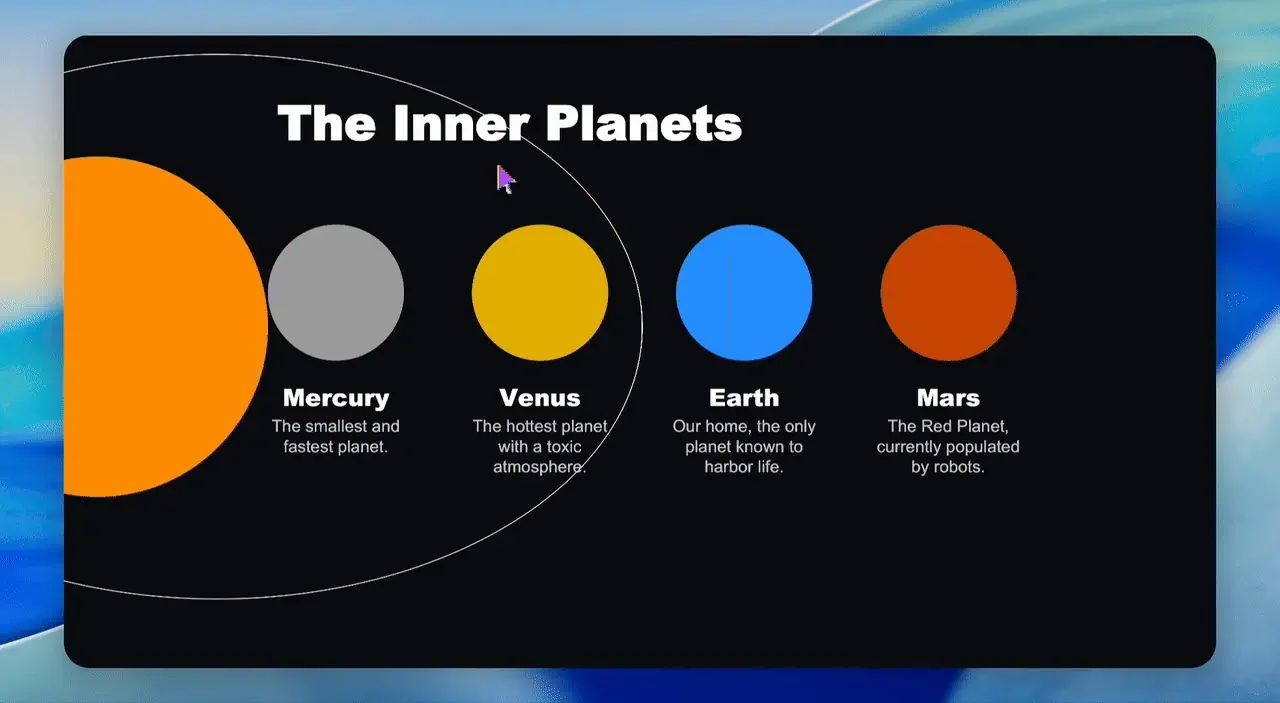
What OfficeCLI Is
OfficeCLI is an open-source command-line tool that lets AI agents read and write Word (.docx), Excel (.xlsx), and PowerPoint (.pptx) files directly. Released in March 2026, it passed 25,700 GitHub stars in under five months, and it ships under the Apache 2.0 license, so commercial use is unrestricted.
Its biggest feature is that Microsoft Office doesn't need to be installed on the machine at all. Even the .NET runtime is embedded in the binary, so one downloaded file is all it takes. It runs the same way on servers, containers, and CI pipelines — anywhere without a display or Office.
There are two ways to use it. A person can type commands like officecli create or officecli add directly into a terminal, or register it as a skill inside an AI coding tool like Claude Code or Cursor and drive it with natural language. This piece covers both.
Installing It
Installation splits three ways depending on OS and preference. macOS and Linux just run the curl-fetched install script; Windows has its own PowerShell version. Homebrew, Scoop, and npm are all supported too.
All the install script does is copy the binary onto your PATH — no config file, no dependency install. Check it worked with officecli --version.
The part that matters comes next. Running officecli install once makes the tool find every AI coding tool already on your machine — Claude Code, Cursor, Windsurf, GitHub Copilot, and more — and plants a skill (a how-to file) inside each one. From that moment, you can hand document work to the AI chat in plain language.
curl -fsSL https://raw.githubusercontent.com/iOfficeAI/OfficeCLI/main/install.sh | bash

# or via a package manager
brew install officecli
npm install -g @officecli/officecliofficecli install # auto-registers as a skill in Claude Code, Cursor, etc.
officecli --version # confirm the installTrying It — Build One Slide
The fastest way to see it work is to create a blank PowerPoint and fill in a slide. Running the commands below in order produces a title slide with a background color and a text box.
Through an AI chat, this whole sequence collapses into one sentence. With officecli install already registered in Claude Code or Cursor, you just type "make a cover slide for the quarterly report — title Q4 Report, navy background" into the chat. The AI runs commands shaped exactly like the ones below on your behalf.
To see the result, add html or screenshot to officecli view. html produces a file you open in a browser; screenshot pulls one PNG per slide. The watch command starts a local server, and after that any add or set you run updates the browser instantly.
officecli create deck.pptx
officecli add deck.pptx / --type slide --prop title="Q4 Report" --prop background=1A1A2E
officecli add deck.pptx '/slide[1]' --type shape \
  --prop text="Revenue grew 25%" --prop x=2cm --prop y=5cm \
--prop font=Arial --prop size=24 --prop color=FFFFFFofficecli view deck.pptx html # generates a browser-viewable file
officecli view deck.pptx screenshot # one PNG per slide
officecli watch deck.pptx # live-preview server (localhost:26315)What Makes It Different — the AI Looks at Its Own Output
Python libraries like python-pptx and openpyxl already let you generate Office files in code. The problem was that an AI agent had no way to check what it had just built. The code logs success, but whether a title overflowed or two shapes overlapped on the actual slide only showed up when a human opened the file.
OfficeCLI closes that gap with a built-in rendering engine. It draws .docx, .xlsx, and .pptx files — down to shapes, charts, formulas, and 3D models — into high-fidelity HTML or PNG, and that output can be handed straight back to the AI. Closing the render → look → fix loop inside the command line is the tool's central claim.
Excel gets its own formula and pivot engine. Over 350 built-in functions are evaluated automatically at write time, so writing =SUM(A1:A2) and immediately running get already returns the calculated value — no need to open Excel and wait for a recalc.
How Far Word, Excel, and PowerPoint Support Goes
All three formats support reading, editing, and creation. Word covers multi-language and RTL text down to footnotes and a table of contents; Excel covers pivot tables, conditional formatting, and slicers; PowerPoint covers animations, transitions, and 3D models. The table below is the support matrix the README publishes.
| Format | Read | Modify | Create |
|---|---|---|---|
| Word (.docx) | Yes | Yes | Yes |
| Excel (.xlsx) | Yes | Yes | Yes |
| PowerPoint (.pptx) | Yes | Yes | Yes |
What Office Workers Actually Do With It — Template Merging
The most practical feature is merge. Build a report template once with placeholders like {{client}} and {{total}} inside it, and after that you just swap in new JSON data to stamp out the document as many times as you need. Placeholders are recognized in paragraphs, table cells, shapes, headers and footers, and even chart titles.
This is aimed at a specific failure mode: if you ask an AI to build a report from scratch every time, the layout drifts slightly from one document to the next. The design intent is that the template gets built expensively once, with a human reviewing it, and filling it in afterward stays cheap and deterministic.
officecli merge invoice-template.docx out-001.docx \
  --data '{"client":"Acme","total":"$5,200"}'
You Don't Need to Tell Your Manager
What this tool replaces isn't the substance of the work — it's the time spent dressing it up. Explaining why your overtime dropped tends to just fill that same time with something else. Install it quietly, use it quietly, and leave on time.