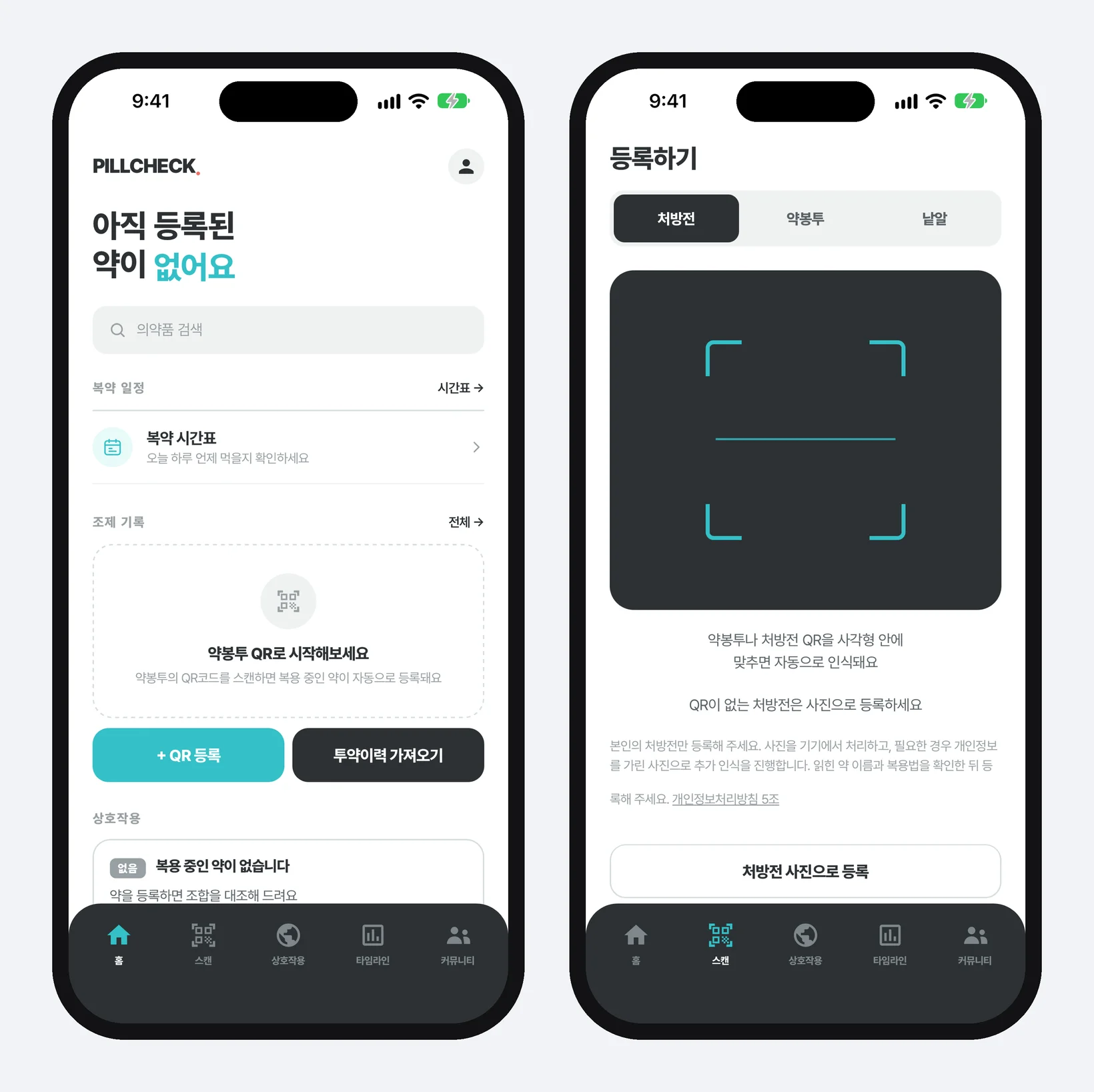
What PillCheck Scan does
The PillCheck app went live on the App Store on October 4 and is also on Google Play. This series looks at the app one feature at a time. The first piece covers Scan, where every record starts.
PillCheck is a service for seeing information about the medicines you take, when to take them and your dispensing history in one place. All of those screens only mean something once your medicines are recorded. Scan lets you record them by pointing the camera at the paper in your hand instead of typing each drug name.
The Scan screen has three targets: Prescription, Envelope and Pill. This piece covers the first two. Envelopes are recorded with their QR code, prescriptions with a photo. Pill is a separate feature that suggests similar medicines from a photo of the pill itself.
Photo registration on the web (www.pillcheck.co.kr) was covered in the earlier piece, “PillCheck OCR.” What is new here is the app. In the app, a photo goes through one more step on the phone before it leaves the phone.
How to use it in the app
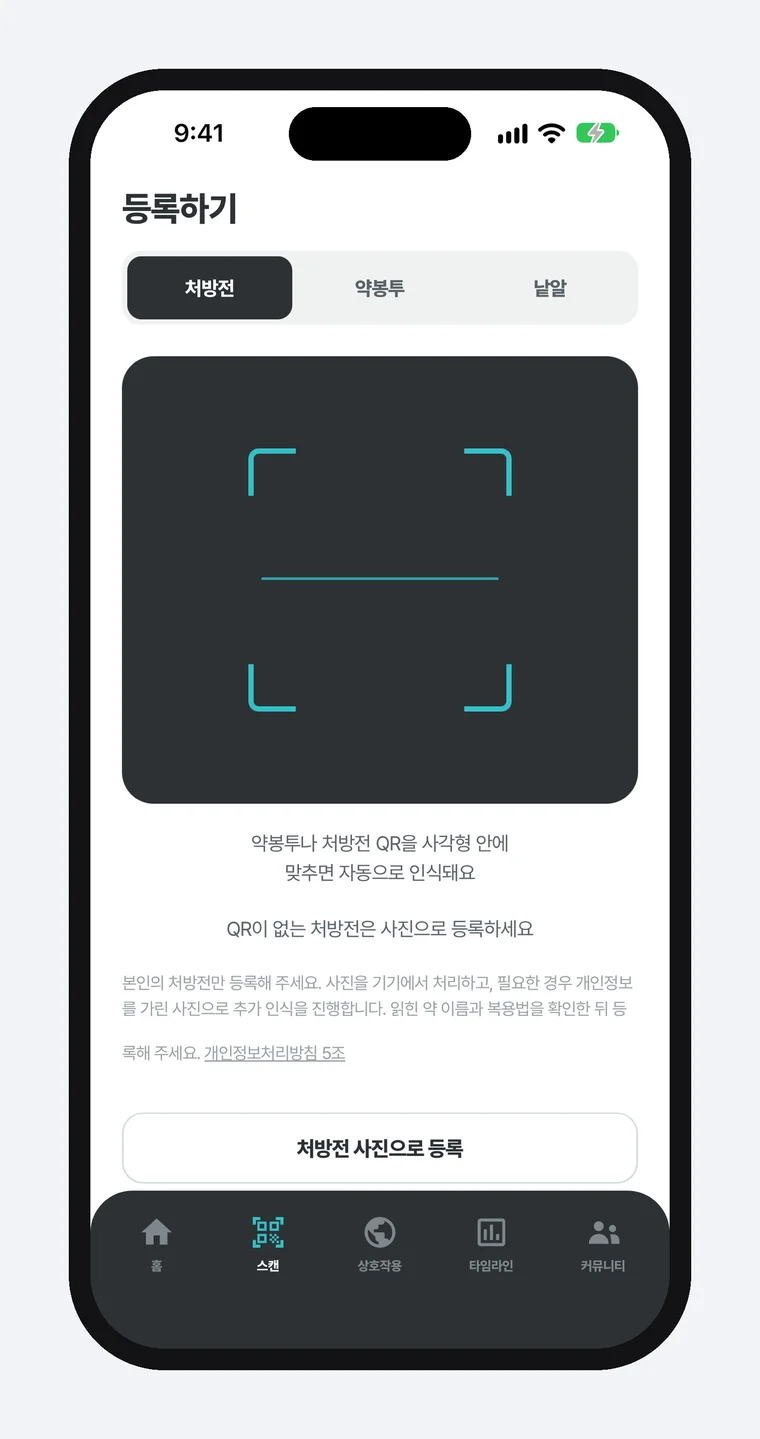
First, tap Scan in the menu at the very bottom of the screen. The camera turns on straight away, with no extra “Take photo” button to press. The first time, the app asks for camera permission.
Second, choose what you are holding at the top: Prescription, Envelope or Pill. Swiping the camera view left or right also moves to the next target.
Third, for an envelope, line the QR code up inside the square on screen. You do not press anything: the dispensing record is saved the moment the code is recognised. A QR code is a code that stores information in a pattern of small squares, and the QR on a medication envelope holds the key for loading that dispensing record. You need to be signed in to save the record.
Fourth, for a prescription, press the shutter on the Prescription tab to take a photo. In the app, prescriptions are recorded by photo, not by QR code. When the result comes into your records, check the drug names and dosing that were read and correct anything that is wrong.
What happens on the phone the moment you shoot
When you press the shutter, the photo exists only in a temporary space the app uses. It is not saved to your photo library, and the app deletes it when the work is done.
Next, the phone reads the text in the photo itself. Text recognition is the technology that turns characters in a photo into text a computer can work with. The PillCheck app carries this capability inside the app, so the phone can find the characters and their positions without sending anything over the internet.
If the phone reads the whole drug table reliably from start to finish, it records only the list of medicines it read and does not send the photo. Medicines recorded this way go in as unconfirmed and are not used as confirmed medicines until you check them. Prescription layouts vary widely, though, so it is still uncommon for the phone alone to read a whole table reliably.
Otherwise the photo goes to the text-recognition server, which reads it more precisely. A server is a remote computer that PillCheck runs. It is right before this step that the phone masks personal information.
What a prescription photo hides and what it keeps
What it hides is anything that can identify the patient: the patient name and resident registration number cells, the patient's name printed again elsewhere, the names of other private people such as a guardian, mobile numbers, and barcodes. A barcode is a code that stores information in bars or dots of different widths. You cannot tell from the outside what it holds, so every barcode found is painted over.
What it keeps is the drug table and the medical institution information. The server needs the drug names and dosing, and hospital and pharmacy details were judged not to point to an individual. The pharmacy name and hospital name are read separately by the phone from the original before masking and passed along, and PillCheck matches them against the list of medical institutions before attaching them to the record. Patient and pharmacist names are not passed along this route either.
The masking works by cell, not by character. The phone finds the cells by the position of labels such as “Name” and “Resident registration number” and paints each whole cell black. If you read characters and erase only those, a misread character is never picked up as something to erase and stays visible.
After painting, the phone reads the resulting image again from scratch. If the patient's name can still be read anywhere, or a barcode is left, the photo is not sent. Only an image that passes this check is sent. What is sent is not the original photo but a new image made after painting, and that masked photo appears on screen so you can see exactly what goes out.
What happens after it reaches the server is as described in “PillCheck OCR.” The drug codes are used to look up and attach drug information, and rows that could not be read are left as “Unknown” for you to fill in. The photo is not stored on the server once text recognition is done.
Decisions made while building it, and why
First, photos are taken in the in-app camera rather than handed off to the phone's own camera app. With the built-in camera the photo stays in your photo library, and every shot means leaving the app and coming back. The in-app camera can keep reading QR codes while you point it, so an envelope is done without pressing the shutter. The app also prevents QR recognition and the shutter on the same screen from overlapping and saving the same envelope twice.
Second, if anything fails, nothing is sent. If the page does not clearly read as a prescription, if the phone cannot find exactly one labelled pair of patient name and resident registration number, or if it cannot finish the barcode check, the photo does not leave the phone. The screen says “This photo can't be sent safely. Please retake it or search for the medicine directly.” Asking the user to shoot once more was judged better than sending a photo that is only partly masked.
Third, envelope photos are not sent to the server. A prescription follows a set form, so the patient details sit next to their labels, but an envelope prints the patient's name in several places without any label. In testing, finding the name by reading the text could not cover every place it appeared. So QR is the default for envelopes. If you photograph an envelope without a QR code, the app records it only when the phone alone has read the whole table reliably, and otherwise it asks you to scan the QR code or search for the medicine directly.
Fourth, the masking method is tied to the record of the tests run on it. The app sends a photo only when the approved masking method and its test record match. The test record lists a fingerprint for each masking code file. A fingerprint is a unique number calculated from a file's contents, so changing a single character changes it. An automated test, a check that runs by itself whenever the code changes, compares these fingerprints with the current code, so if the masking code is changed, the test reports a failure until the tests are run again and a new record is made. The structure itself stops anyone who edits that code from skipping the tests.
What to take from this when you handle photos of documents
Three things from PillCheck Scan carry over to other work.
First, mask on the sending side before you send. A promise from the receiving side not to store something is different from never receiving it at all. Whatever can be masked is masked most reliably at the source.
Second, look for the area to erase, not the characters to erase. Erasing characters you have read leaves the misread ones behind. Covering a whole area based on a fixed anchor such as a label is safer.
Third, make “not masked, not sent” the default. Here is one thing to try today. Before you upload a photo of a prescription or a contract to an AI chat or another service, paint over the name and number fields in your phone's photo editor, then zoom right in on the painted photo and check that no characters show through. If you cannot confirm it, do not upload it.
The next piece covers drug search and the drug detail page, which open when you tap a medicine you have recorded.