What is stdin?
Spend any time in a terminal and you will run into the word stdin. It stands for standard input, and the thing itself is simple: it is the default path a program reads its input from.
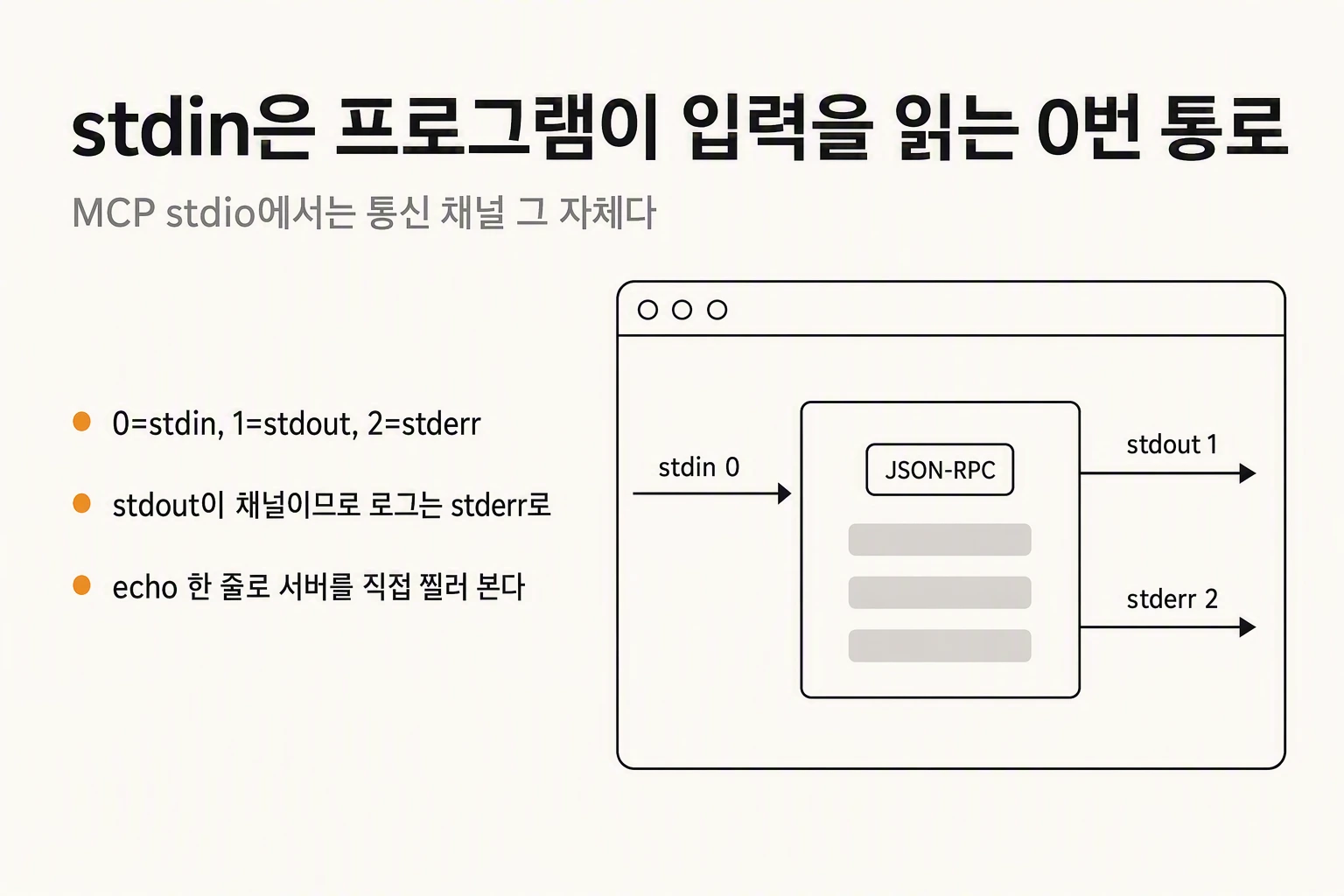
When the operating system starts a process, it opens three numbered paths by default. Those numbers are called file descriptors. Number 0 is stdin, number 1 is stdout (standard output), and number 2 is stderr (standard error). A program reads from 0, writes its results to 1, and writes errors and logs to 2.
The important part is that the program does not need to know what the path is connected to. It might be a keyboard, a file, or the output of a previous command. The shell makes that connection on the program's behalf. The program simply reads stdin. This is precisely why Unix pipelines work.
And the fact that 1 and 2 are separate becomes the crux of the second half of this article. Logs meant for a human and data meant for the next program must not mix, so the paths were split in two from the start.
| Name | FD | Direction | Default | Purpose |
|---|---|---|---|---|
| stdin | 0 | input | keyboard | data the program reads |
| stdout | 1 | output | screen | results passed to the next program |
| stderr | 2 | output | screen | logs and errors for a human |
How stdin is used in a CLI
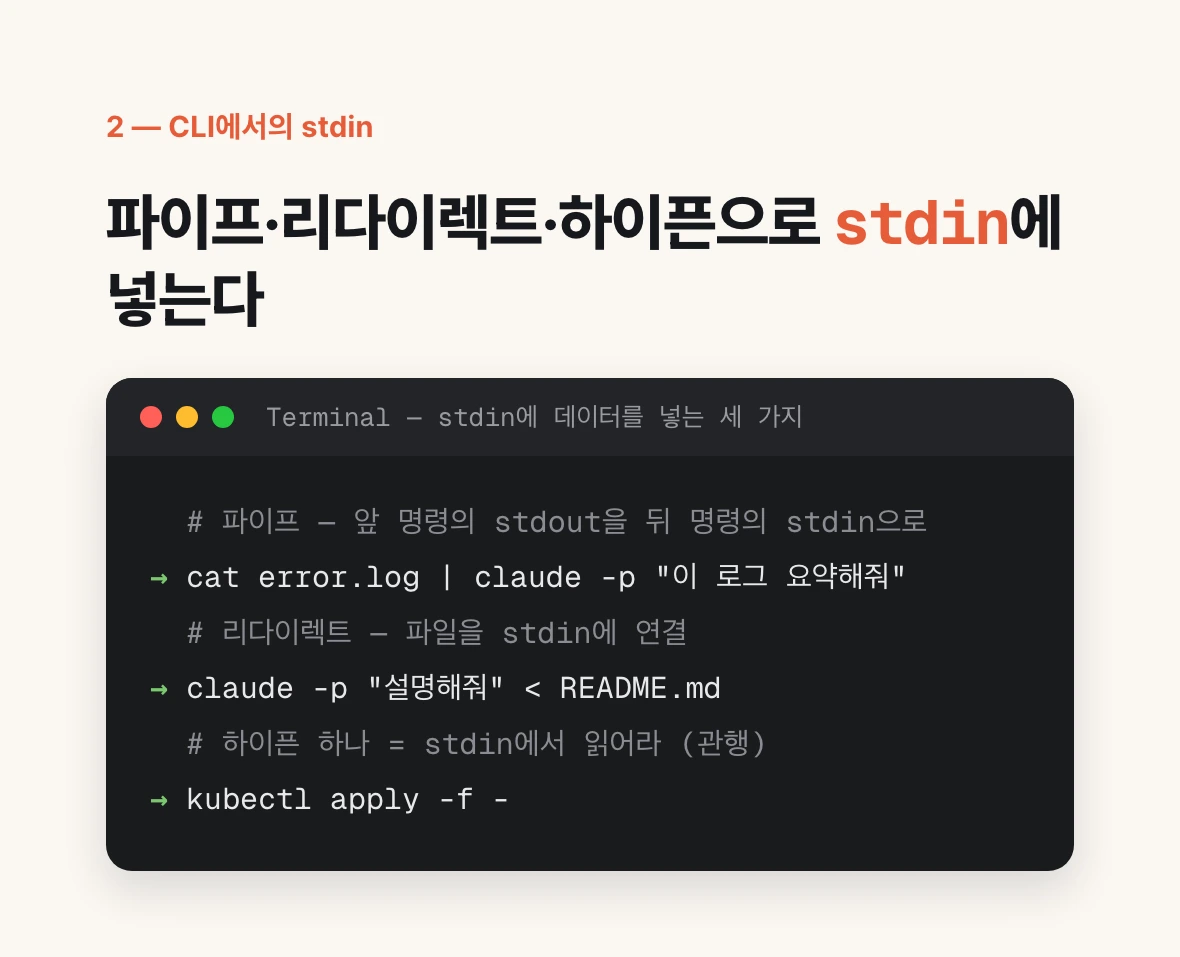
There are roughly four uses. Typing each one out yourself is the fastest way to get a feel for it.
First, pipes. The stdout of one command is joined to the stdin of the next. You reach for this when the data is too long to pass as an argument. Write cat error.log | claude -p "summarize this log" and the whole log goes in through stdin. When claude -p finds data on stdin, it prepends it to the prompt.
Second, redirection. A file is connected directly to stdin, as in claude -p "explain this" < README.md. The result resembles a pipe, but one fewer process is spawned.
Third, a single hyphen. Many CLIs agree by convention that a - in the place of a file argument means read from stdin — kubectl apply -f - or docker build -t img -. This is convention rather than specification, so support varies; check the help text.
Fourth, heredocs. Several lines go straight into stdin with no temporary file, which is convenient for SQL or configuration fragments.
# 1) Pipe — stdout of one command into stdin of the next
echo hello | cat
cat error.log | claude -p "summarize this log"
git diff | claude -p "review this"

# 2) Redirect — connect a file to stdin
claude -p "explain this" < README.md
wc -l < /etc/hosts

# 3) A single hyphen = read from stdin (convention)
curl -s https://example.com/a.json | jq . -
kubectl apply -f -

# 4) Heredoc — several lines, no temp file
cat <<'EOF' | sort
banana
apple
EOF
isatty — the real reason a CLI hangs
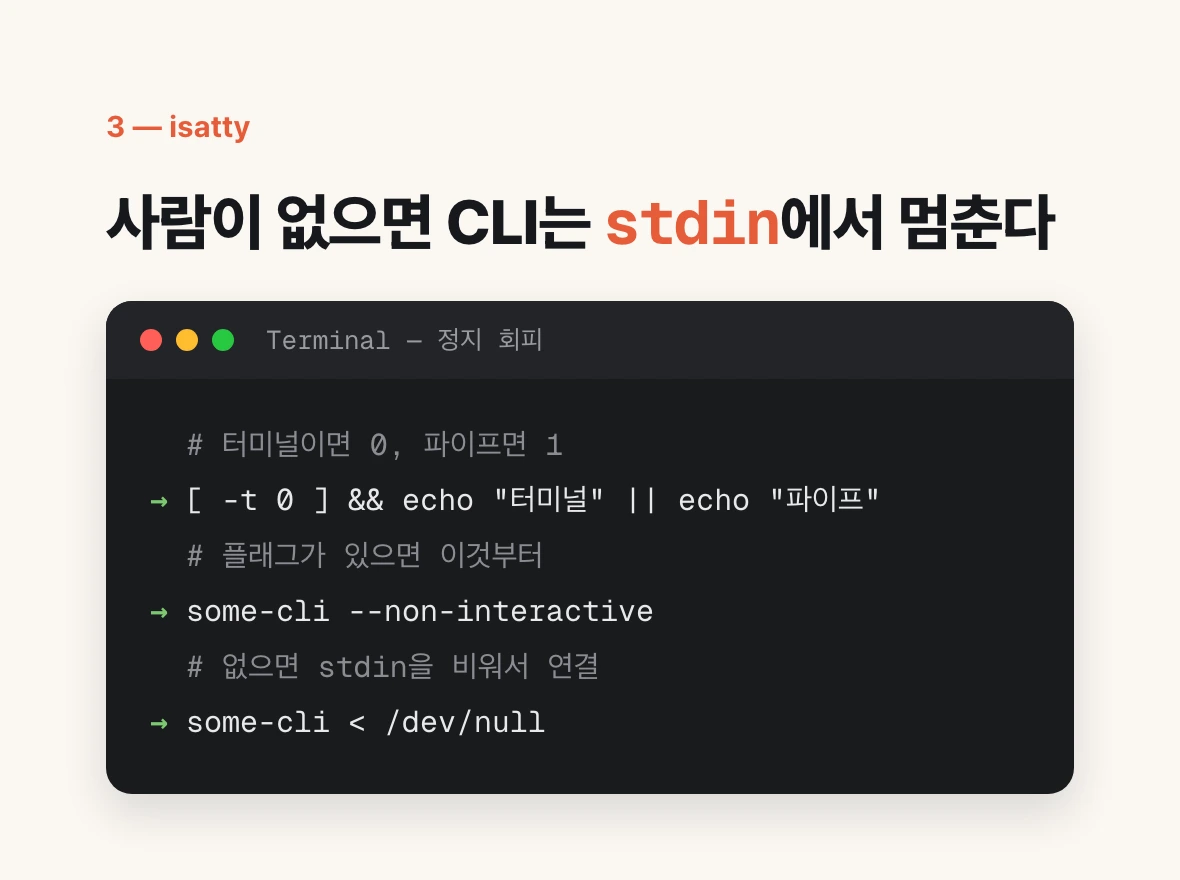
Here is the trap beginners hit most often: a CLI in cron or a CI script that hangs with no output at all.
The cause is usually stdin. The program is waiting to ask a human something, and there is no human there. In a terminal a prompt appears and you can see what is happening; in the background nothing is visible and it hangs forever.
So a well-built CLI first checks whether stdin is attached to a terminal. That check is called isatty. If it is a terminal, a person is present, so it asks; if not, it simply reads whatever came in through the pipe. That branch is what lets the same command work both interactively and in scripts.
When somebody else's CLI hangs on you, there are two moves. If a flag like --non-interactive or -y exists, use it. If not, connect something empty to stdin: append < /dev/null and the program immediately hits end of input and gives up on the question. Making that a habit in cron scripts eliminates a great many mystery hangs.
# Branching in Python
import sys
if sys.stdin.isatty():
    name = input("name: ")       # a human is at the terminal
else:
    data = sys.stdin.read()      # it came in through a pipe

# Checking in the shell — 0 if a terminal, 1 if a pipe
[ -t 0 ] && echo "terminal" || echo "pipe"

# When someone else's CLI hangs waiting for input
some-cli --non-interactive        # try the flag first
some-cli < /dev/null              # otherwise, hand it an empty stdin
In MCP, stdin is the communication channel itself
This is where stdin's status changes. Up to now it has been a path that carries data; under MCP's stdio transport, stdin and stdout are the communication channel itself.
The MCP specification defines two transports. One is Streamable HTTP, used by remote servers. The other is stdio. In the specification's own description, it exchanges newline-delimited messages over the standard streams of a client-launched subprocess.
In other words, a local MCP server is nothing special. It is just a process. A client such as Claude Code spawns it as a child and talks to it over pipes without opening a socket or a port. The server reads requests from stdin and writes responses to stdout. That is the whole mechanism.
What travels back and forth is JSON-RPC 2.0 messages, one per line. The specification states that messages are delimited by newlines and MUST NOT contain embedded newlines. So a parser can read one line and interpret it as JSON — that is how simple it stays.
Configuration does exactly this much and no more. The command and args in a Claude Code MCP entry only say which command to spawn; everything else is just attaching to that process's stdin and stdout. The claude mcp add help text showing a stdio server registered by writing the executable command after two hyphens is telling the same story.
# Everything after the two hyphens is the command to run
claude mcp add my-server -- npx my-mcp-server

# With environment variables
claude mcp add my-server -e API_KEY=xxx -- npx my-mcp-server

# Inspect what is registered
claude mcp list
claude mcp get my-server

# For contrast: remote servers attach over HTTP, not stdio
claude mcp add --transport http sentry https://mcp.sentry.dev/mcp→ into the server's stdin:
{"jsonrpc":"2.0","id":1,"method":"tools/list"}
← out of the server's stdout:
{"jsonrpc":"2.0","id":1,"result":{"tools":[...]}}Which is why logging to stdout kills the server
Turn the previous section over and it explains the most common accident in MCP server development. stdout is the protocol channel, so nothing that is not protocol may be written to it.
The specification is blunt: the server MUST NOT write anything to its stdout that is not a valid MCP message. MUST NOT — a prohibition, not a recommendation.
And this mistake is startlingly easy to make. One console.log("server started") is enough. It happens even when you did not write it: a library prints a banner while initializing, npx emits a warning while fetching a package, or one leftover debug print survives from development — and it lands in the JSON stream. The client's parser tries to read that line as JSON, fails, and the connection drops.
So this is the first thing to check when an MCP server reports failed to connect. Find every write to stdout in the code and move it to stderr. The specification states that the server MAY write UTF-8 strings to stderr for any logging purposes, and that the client SHOULD NOT assume stderr output indicates error conditions. stderr is the logging channel the spec sanctions.
Worth adding: a recent revision marks the server-to-client Logging capability as deprecated and directs new implementations to log to stderr instead. Same direction.
// Breaks the protocol — stdout is the channel
console.log("server started");
console.log(JSON.stringify(debugState));

// Correct — logs go to stderr
console.error("server started");
process.stderr.write(`[debug] tool called: ${name}\n`);

// Same in Python
print("server started")                        # breaks it
print("server started", file=sys.stderr)        # correct

// To rule the mistake out entirely, do this at the entry point
console.log = console.error;# Just run the server and watch what appears on stdout.
# A single line of non-JSON is your culprit.
node my-server.js < /dev/null
# Discarding stderr makes it even clearer
node my-server.js < /dev/null 2>/dev/nullPoking the server directly, with no client
The fact that an MCP server is just a process speaking over stdin and stdout comes with a practical reward: you can test it without going through Claude Code at all.
Pipe one line of request JSON into the server's stdin. Asking for the tool list with tools/list is the simplest test. If the response JSON comes straight back, the server is fine. If nothing comes back, or stray characters are mixed in, your stdout is contaminated.
This is useful because it narrows the problem. When a connection fails in the client, you cannot tell whether the fault is in the server code, the configuration, or the client. Poke it directly; if a response arrives, the server is exonerated and you go look at configuration or the client.
There is a more comfortable tool as well. The official MCP Inspector runs the server and lets you inspect the tool list and call results in a browser or a terminal, with no hand-written JSON — better for repeated work.
To see a server's stderr from inside Claude Code, turn on debug mode. The --mcp-debug flag that used to be documented is no longer in the help output. Today it is -d or --debug with an optional category filter, and --debug-file with a path if you want it on disk. Checking the help text once before you rely on it is the safe move.
# Push a tools/list request straight into the server's stdin
echo '{"jsonrpc":"2.0","id":1,"method":"tools/list"}' | node my-server.js

# A healthy server answers like this
# {"jsonrpc":"2.0","id":1,"result":{"tools":[...]}}

# Or run it under the official Inspector
npx @modelcontextprotocol/inspector node my-server.js

# Debug logs in Claude Code (not --mcp-debug)
claude --help | grep -i -E 'mcp|debug'
claude -d mcp
claude --debug-file /tmp/claude-debug.log
Summary — where the stdin story ends
stdin itself is simple. It is path 0, the one a program reads input from, and the shell connects a keyboard, a file, or a previous command's output to it. In a CLI you meet it in four forms — pipe, redirect, hyphen, heredoc — and staying unstuck where no human is present takes an isatty branch or a < /dev/null.
MCP uses that path as a communication channel. Everything else follows from that single decision. That a local server is a process, that configuration holds only a command and its arguments, that you must not log to stdout, that logs belong on stderr, that one echo can test a server with no client — these are all the same fact wearing different faces.
So when an MCP server you are building will not connect, the order is this. First look at whether anything non-JSON appears on stdout. If it does, move it to stderr. If that is not it, poke the server with echo to determine whether the fault lies with the server or the client. Those two steps end most of these cases.
One last boundary. All of the above applies to the stdio transport only. Remote MCP servers attach over Streamable HTTP, so they have nothing to do with stdin and nothing you print to stdout will break the protocol. Servers you install and run locally are, in the main, stdio.