Behind the submit button there is storage
Picture the consultation request box that often sits near the bottom of a service introduction page. You type your name, type your inquiry, pick a consultation type, and press submit. An entry sheet like this, where you fill in values and send them all at once, is called a form. It is the same form as in Google Forms, the tool people use to build surveys.
The lecture asks you to think of one thing first when you look at this form. When you press submit, these values get stored somewhere. The people running the service need to read the inquiry in an admin screen, a screen only operators can enter, so the values have to remain somewhere. That somewhere is the database, a place that keeps values stacked in the shape of a table.
A spreadsheet makes it easy. Name the columns name, inquiry, and type, and fill one row each time an inquiry comes in. The submit button is the act of saving, not a value being saved, so it does not become a column.
Values in the same column need to have the same shape. If some rows hold one value in the type column and others hold several written any which way, filtering or searching later becomes a headache. So the shape of the value in each field has to be settled first.
Each field has a fixed value shape
![Name is stored as short text, the inquiry as long text, and a multi-select consultation type as a list — even a single pick becomes a list like ["B"]](/insights/ui-has-right-answers-value-shape-per-field.webp)
A name is just text. A database calls a value made of characters a string. In terms of the data types from part 01, the shape of value each column holds, it corresponds to varchar, which holds short text.
An inquiry can run long. Values like that are called long text, text, as a separate type. Both are characters, but they are named apart by length.
The consultation type goes one of two ways. If you allow only one choice, you only need to store the one value picked, so it is a single string. If you allow several, the shape of the value itself becomes a list. Imagine ten options with three of them picked and it is obvious.
A bundle holding several values in order is called an array or a list. It opens with a square bracket, lists the picked values separated by commas, and closes with a square bracket. In a multiple-choice field, even a single pick is stored as a list with one value in it. You could glue the values into one string, but the basic nature of the value is a list.
| Field | Shape of the stored value | Example |
|---|---|---|
| Name | String (short text, varchar) | Minsu Kim |
| Inquiry | Long text (text) | I would like a consultation next month |
| Type — pick one | A single string | B |
| Type — pick several | List (array) | ["A", "C"] |
name         inquiry                                   type
───────────  ────────────────────────────────────────  ──────────
Minsu Kim    I would like a consultation next month    ["A", "C"]
Seoyeon Lee  I am curious about pricing                ["B"]

Seoyeon picked only one, but it is stored as one value inside a list
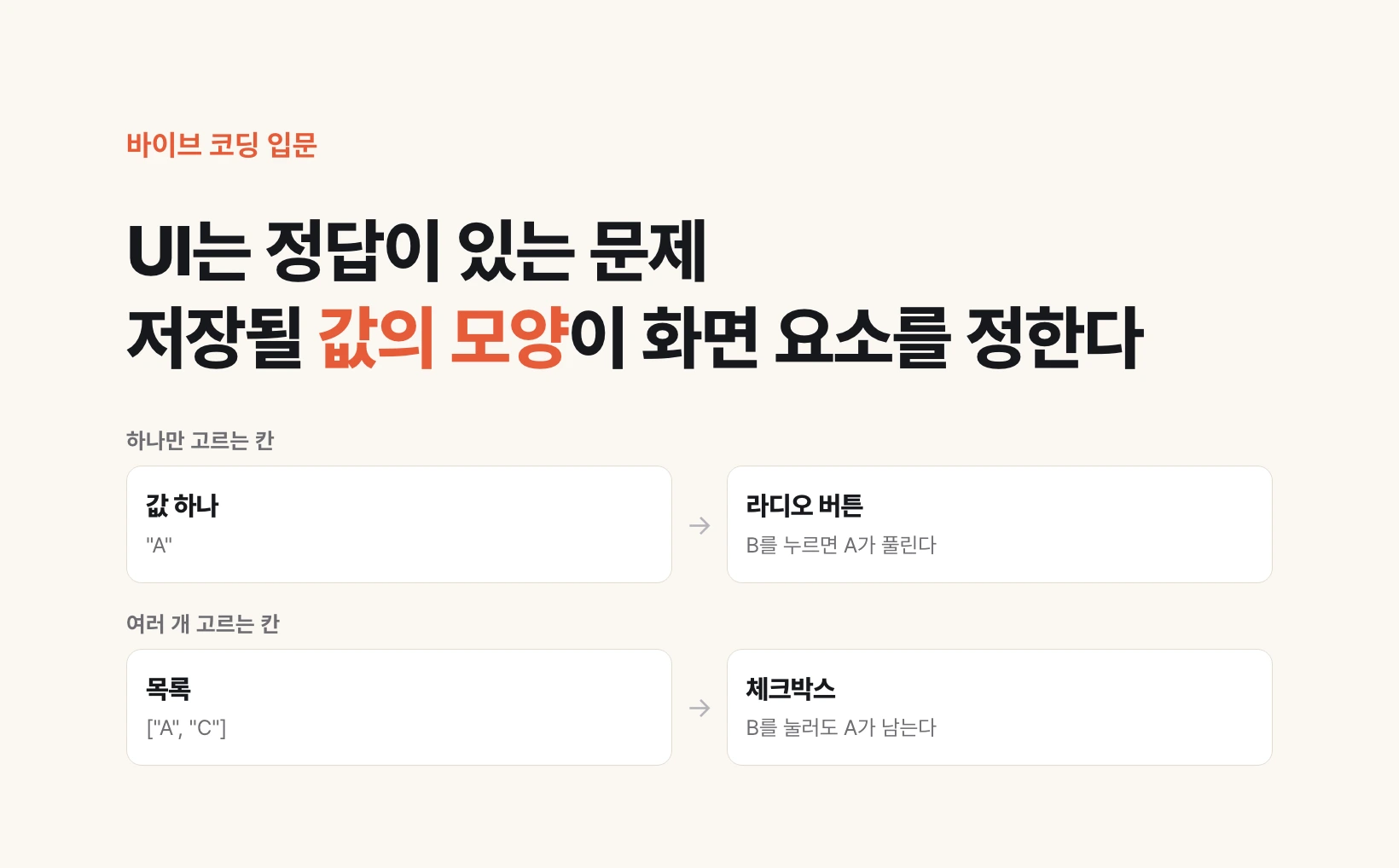
One means radio buttons, several means checkboxes
Once the value shape is fixed, what the screen must do is fixed too. Follow the flow of a user pressing the options.
In a pick-one field, pressing B while A is selected must unselect A. The screen element that behaves this way is the radio button. Among a group of round marks, only one is on.
In a pick-several field, pressing B while A is selected must leave A selected. The element that behaves this way is the checkbox. Each square gets its own check mark.
They look alike but behave differently, and the difference comes straight from the shape of the stored value. Put checkboxes on a field that stores one value, or radio buttons on a field that stores a list, and the screen and the storage stop matching. That is why the lecture calls these two an extremely clear-cut problem.
UI is a problem with right answers — solve forms like sudoku
UI design is often thought of as a matter of artistic sense, with endless options. The lecture recommends a different mindset for people who are not professional UI designers. UI is a problem with right answers, and those answers show up depending on how you look at the problem.
The lecture splits screens broadly into two kinds: forms and everything else. Screens with a form, it says, were almost always problems you could solve like a sudoku. Once you think through the flow of storing the submitted values, there is a range of agreements you must keep, and within it the choice of UI is a game already decided.
Many UI shapes branch off from radio buttons and checkboxes, of course. The lecture explains that the more of these shapes you know, the sharper your eye becomes for judging what vibe coding, the practice of telling AI in plain words to build screens and code, produces.
Here is what you can do today. If AI has built you a form screen, go through its fields one by one and ask what shape each value is stored in. If you are having one built from scratch, write down the shape of the values first, as below, and have the screen elements follow it.
Next we look at whether a place that is not a form, the filter above a list of case study cards, also has a right answer.
For each field in this consultation request form, make a table of what shape the submitted value is stored in.
Columns: field / shape of the stored value (short text, long text, one value, list) / screen element currently used.
Flag any field that stores one value but uses checkboxes, and any field that stores a list but uses radio buttons.Build a consultation request form. The submitted values have these shapes:
- name: the person's name, short string
- message: the inquiry, long text
- types: consultation type, several of A, B, C may be picked, list of strings (e.g. ["A", "C"])
Make types checkboxes, and keep earlier picks selected when more are picked.